Maya Exporter
The Maya module brings the same bridge to Maya + Pencil+, and the same Structure model: one tree of drawings, art layers and passes, in the same words as Blender — so a Line + Line Set filter and a per-Line-Set recipe mean exactly what they mean there.
Opening it
The installer adds a shelf button (the OVB glyph), or run in the Script Editor:
import maya_bridge.launch as ovb
ovb.show(live=True)  # the real scene (Pencil+ loaded)
ovb.show(live=False) # mock scene — explore the panel, Convert is off
The window opens on what the scene already carries: the Structure you authored last time is stored in the scene file, so a saved scene comes back with its tree.
Source
The camera to project from, the render resolution read from the render globals (1920 × 1080), and the frame range — Scene range (playback start/end) or Custom with your own Frames start–end. Renderable cameras rank ahead of the startup ortho views, so the scene's real render camera is the default.
Structure
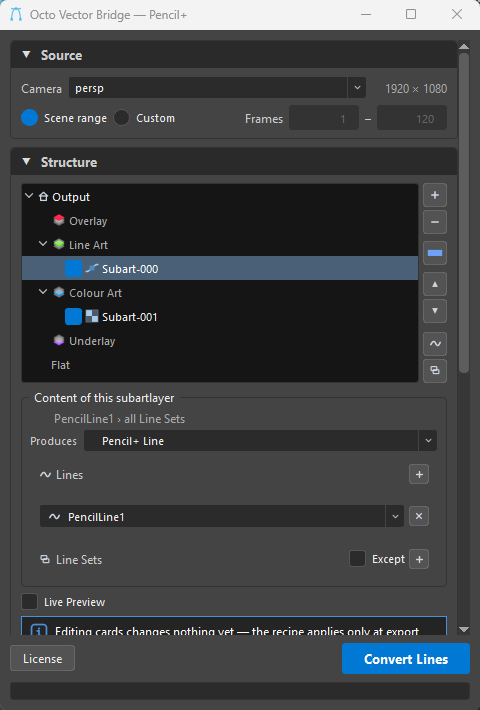
The tree is the folder layout Harmony imports — the Maya twin of the Blender tree, with native chevrons and folding:
 Output is the root drawing and the output folder; a named drawing under it is a folder of its own and a Read node in Harmony.
- The four fixed containers —
 Overlay,
  Line Art,
  Colour Art,
  Underlay — plus Flat.
 - Passes (
Subart-000,Subart-001…) with an enable box, a name, and the icon of what they produce: vector or
  bitmap. Passes in one container are that art layer's stack, top to bottom.
The button column
| Button | What it does |
|---|---|
+ |
Add a pass — inside the selected container, or below the selected pass. |
− |
Remove the selected pass, or the selected drawing with everything in it. |
|
Add a drawing — its own folder in the output, its own node in Harmony. |
| ▲ ▼ | Move the pass up / down — past a container's edge it enters the one above / below. |
| ∿ | Generate one pass per Line. |
| ⧉ | Generate one pass per Line + Line Set. |
Drag & drop
Passes also move by drag. Drop one above or below another pass, onto a container (it lands last in it), or onto a drawing (it lands in that drawing's Line Art). Containers and drawings stay where they are — a drawing moves by its name, a container never moves. The drop indicator only appears where the drop is valid.
Content — what the selected pass produces
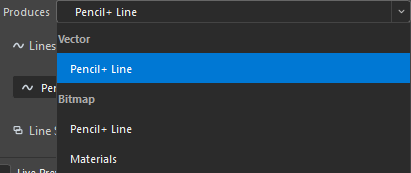
The Produces dropdown, grouped by kind:
| Produces | What Harmony gets | |
|---|---|---|
| Vector |
Pencil+ Line | the lines as SVG, from the Pencil+ AI(EPS) element — editable pencil lines in Harmony. |
| Bitmap |
Pencil+ Line | the lines as PNG, from the Pencil+ Line element — written by the same render, so it costs nothing extra. |
| Bitmap |
Materials | a render of the scene as you shaded it — PNG sequence, from whatever renderer you use. Its own render. |
Pencil+ Line (vector or bitmap)
A filter over your Pencil+ setup, with the summary line stating what it resolves to (PencilLine1 › all Line Sets):
- Lines — the
PencilLinenodes the pass covers;+adds a slot, each slot a dropdown of the scene's Lines. Empty = every Line. - Line Sets — the Line Sets within the picked Lines; disabled until a Line is picked. Empty = every Line Set of those Lines. Except inverts it.
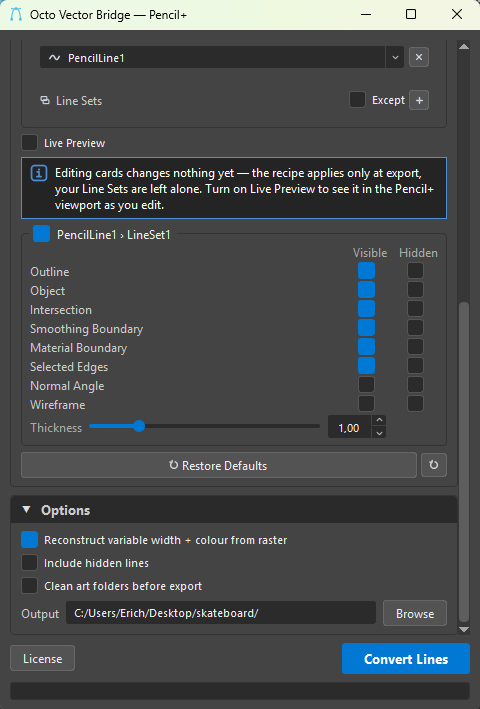
Below the filter, the recipe: one card per (Line › Line Set), born from your Line Set's current setup — an On box, each edge type once with a Visible and a Hidden box (Outline, Object, Intersection, Smoothing Boundary, Material Boundary, Selected Edges, Normal Angle, Wireframe), and a Thickness multiplier (1.00 = your own sizes; it scales every visible brush of the Line Set at once).
Live Preview (off by default) pushes the selected pass's recipe onto your real Line Sets so Pencil+'s viewport shows what it exports; off, editing cards changes nothing yet — the recipe applies only at export, your Line Sets are left alone. Restore Defaults puts them back; ⟳ makes their current state the new default.
Materials
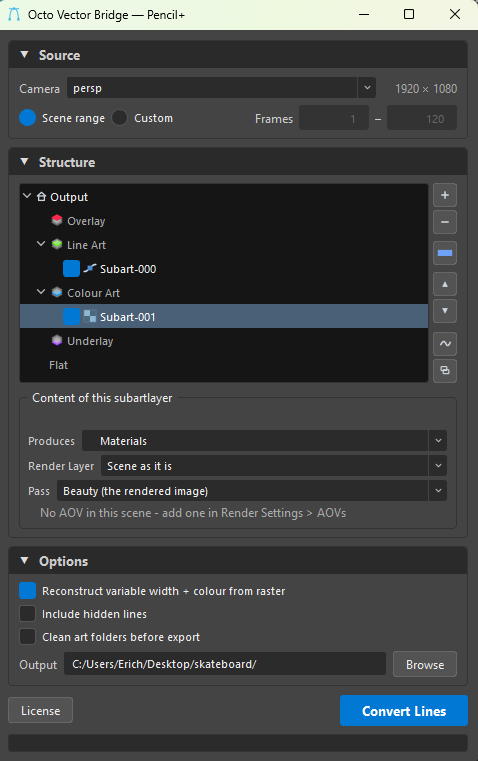
- Render Layer — Scene as it is, or any Render Setup layer: the layer says what is in the picture.
- Pass — Beauty (the rendered image), or an AOV of your renderer: the pass says which component of that picture. When the scene has none, the line under the dropdown says so — No AOV in this scene — add one in Render Settings › AOVs.
The renderer is read from the render globals. Arnold and Maya Software were measured on real scenes; V-Ray and Redshift follow their documented API and the panel says when a renderer is unmeasured. A renderer without AOVs is not a dead end: author the separation on a Render Layer instead, which is exactly what Autodesk recommends for Maya Software.
Options
- Format — SVG (default; keeps the recovered per-point width as
data-widths), PDF, or AI. PDF and AI draw one width per line — the panel shows a standing note while either is chosen. An.aiis the PDF bytes with Illustrator's extension; it opens in Illustrator with the paths editable. - Reconstruct variable width + colour from raster (on by default) — the AI(EPS) flattens pressure to a base width and drops per-line colour; OVB recovers both by sampling the Line render element.
- Include hidden lines — also export the lines Pencil+ marks as hidden.
- Clean art folders before export — delete
NN_pass folders a previous export left that this one no longer writes. Destructive, so it runs only when ticked. - Output — the folder Harmony imports from; Browse to pick it.
Convert Lines
Convert Lines runs the whole tree over the frame range; the full-width bar tracks it frame by frame. A vector Pencil+ pass renders on its own — the recipe edits what the Line Sets generate, so it cannot share a render — and its Line Sets are put back exactly as it found them. A bitmap Pencil+ pass rides the same render as its vector twin; a Materials pass is one render of the scene per frame.
License
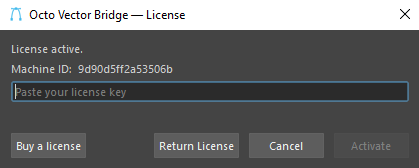
The License button is the license entry point in Maya. It opens the shared activation dialog in any state — status, activating a key, returning the seat — so an already-activated user can still return the licence before wiping the machine. See Licensing.
Occlusion is Pencil+'s own
Pencil+ generates and occludes its own lines, so the occlusion controls (Grease Pencil, in Blender) are not part of this panel. Hidden-line handling comes from Include hidden lines.