Bitmap Import & Potrace
Not everything is a vector. OVB imports raster images (PNG, JPG, TGA, TIFF) two ways — as a bitmap dropped straight into a bitmap art layer, or vectorized into editable pencil/fill art with the bundled Potrace engine. And since the exporters can now write bitmap passes — a rendered fill, a shadow, a Pencil+ line as PNG — a raster is often just one more track of the same drawing the lines came from.
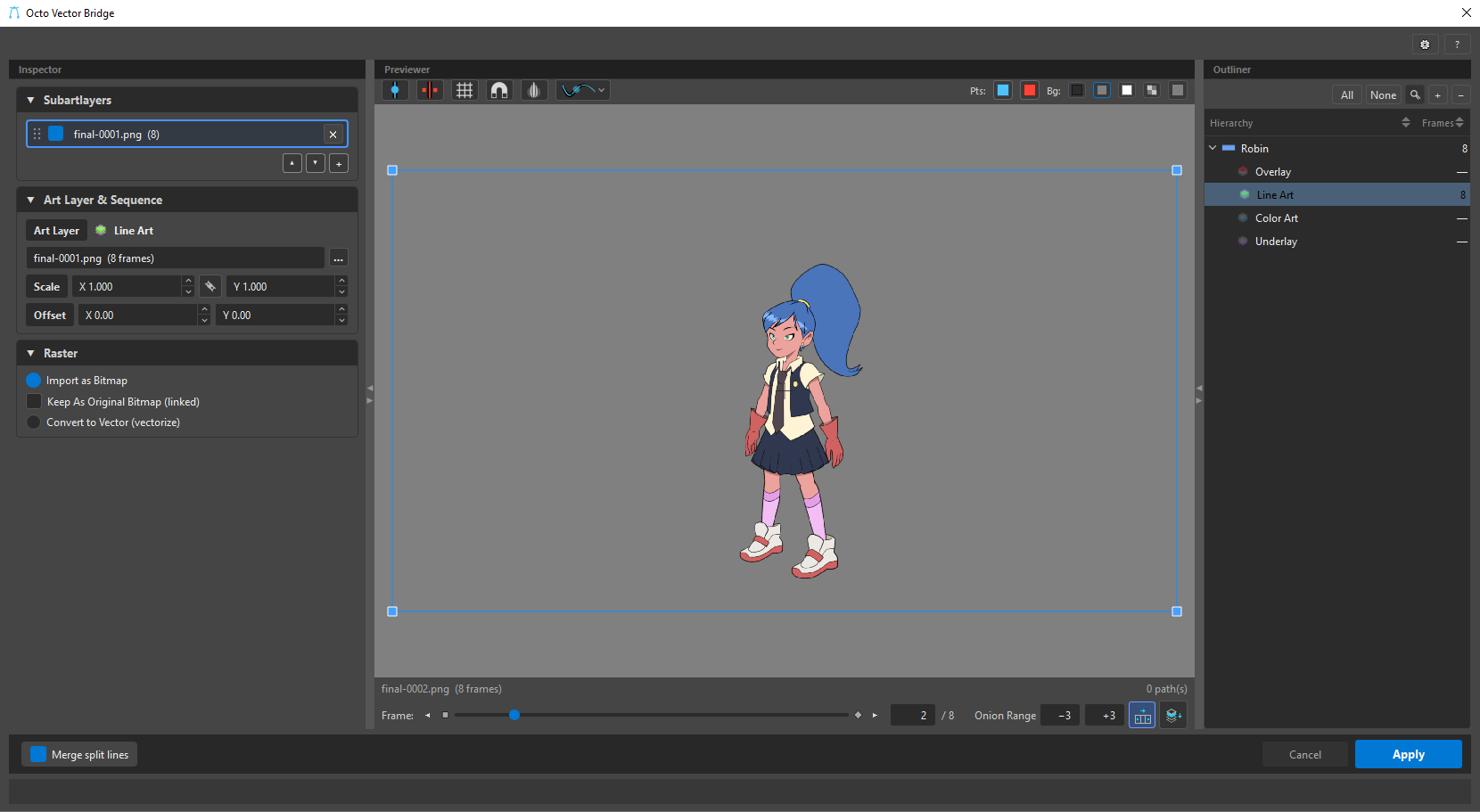
Two content types
A raster track in the Inspector offers a content type:
 Bitmap (Import as Bitmap) — the image is imported as a raster onto a bitmap-mode art layer, at full resolution. No tracing; it stays a picture.
 Vectorize (Convert to Vector) — the image is traced to vector strokes and fills you can edit and rig like any other line art.
The icon on the track's row in the Subartlayers card says which it is.
Bitmap: Toon Boom Bitmap vs linked original
When you import as Bitmap, Keep As Original Bitmap (linked) chooses how the raster lands:
- Import as Toon Boom Bitmap (default — off) — the image is baked into a native Toon Boom bitmap drawing. Self-contained: the drawing travels with the scene.
- Keep As Original Bitmap (linked) (on) — the drawing stays linked to the file on disk. Update the source and the drawing follows; the scene now depends on that file being present.
The drawing's import mode: Art Layers or Original Bitmap
A drawing has a Mode, in its card in the Inspector:
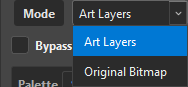
- Art Layers (default) — the art goes into the drawing's four art layers, each a stack of tracks. A Harmony art layer has one drawing mode, so within a layer the topmost live track decides — vector or bitmap — and tracks of the other kind are kept in the list but skipped.
- Original Bitmap — the drawing is one flat bitmap. The art-layer selector stops being a destination and becomes a Recipe: it names the layer whose stack is flattened into that bitmap. The other three layers are not part of the drawing at all — the Outliner strikes them through — and vector tracks never enter the flat, whatever their stack order: the output is a picture, and a stroke has nowhere to go in it. A track set to vectorize counts as vector here (it was authored to become strokes); flip its content type to Bitmap to feed the PNG itself.
When to use Original Bitmap
A painted background, a rendered fill, a plate — anything that should stay one image in Harmony and never be split into art layers. Stack the PNG passes you want composited in the Recipe layer, and the drawing lands as a single bitmap.
Potrace — the trace engine
Vectorize is powered by Potrace, the same C tracer behind Illustrator-style Image Trace. It ships bundled inside OVB — nothing to install. Potrace does the heavy lifting at native speed; OVB feeds it colour masks and fits the results into Harmony's field grid.
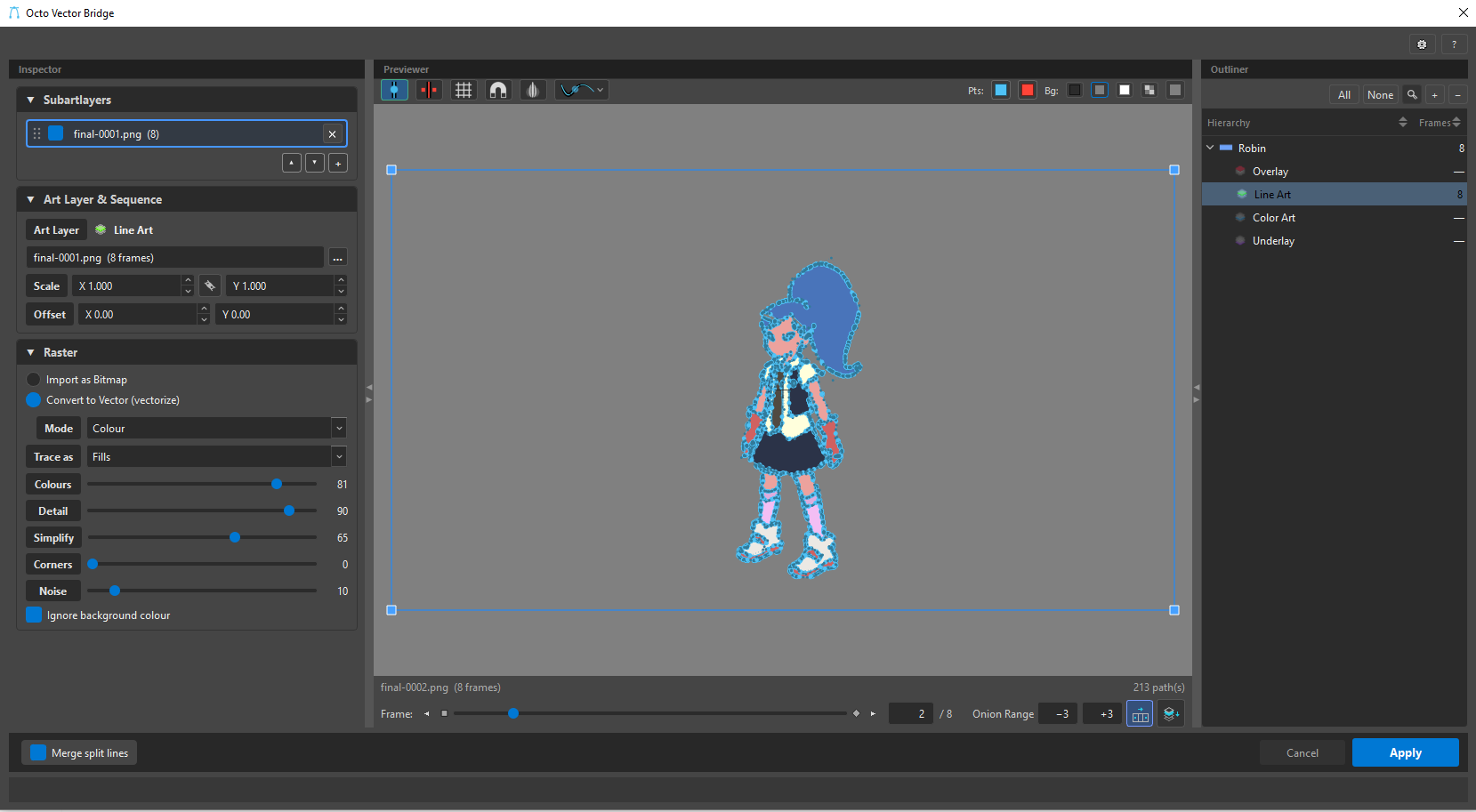
Live preview
Vectorize is live — move a slider and the trace re-runs; scrub a frame and the cached result is reused. The Previewer shows the traced vectors exactly as they will import, so you dial in Detail, Colours and Cleanup by eye.
Bitmap vs vectorize — which?
Use Bitmap when you want the picture as-is (a background, a texture, a rendered fill from Blender or Maya). Use Vectorize when you want editable line art or flat-colour fills — clean, rig-ready, resolution-independent vectors traced from the image.
Next: the three trace modes and every parameter — Trace Modes.