Browser & Bookmarks
The left column is where everything enters. It is a file browser with four permanent sections and a settings strip.
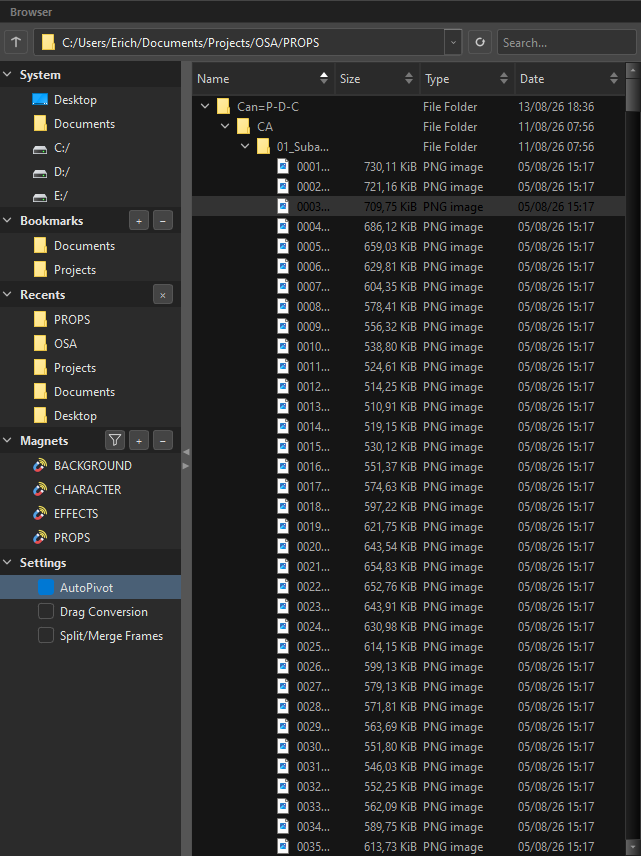
The path bar
| Control | Does |
|---|---|
| ↑ | go to the parent folder |
| Path field | type or paste a path; the dropdown holds where you have been |
| ⟳ | re-read the folder from disk |
| Search | filter the listing by name |
The file list shows Name, Size, Type and Date, and every column sorts.
What you see in the list
Only the formats OSA can actually do something with are listed — the filter is generated from the same format table the importer reads, so the Browser can never offer you a file the tree would refuse.
 A
A .tpl is a folder on disk, and OSA shows it as a single template item rather than letting you walk into it.
Getting files into Staging
Three ways, all equivalent:
- Drag a selection (or a folder) into the Staging column.
- Double-click a file.
- Right-click → Add to Staging.
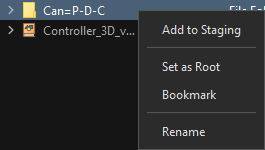
| Menu item | Does |
|---|---|
| Add to Staging | the same as dragging it in |
| Set as Root | makes this folder the top of the Browser |
| Bookmark | pins it to the Bookmarks section |
| Rename | renames the file on disk |
Rename here touches the disk
This is the one place in OSA that changes your files. Renaming a row in the Staging tree only changes the plan; renaming in the Browser renames the real file. Handy for fixing a tag at the source — and worth knowing before you use it.
System
The fixed roots: Desktop, Documents and every drive on the machine. They are always there and cannot be removed.
Bookmarks
Your own list. + adds the current folder, − removes the selected one. Bookmarks persist between sessions, and they are the right home for the two or three project roots you open every day.
Recents
Fills itself as you navigate — up to ten folders, most recent first.
Because it fills itself, it also fouls itself: every folder you passed through on the way somewhere stays until it is pushed out. The × button in the section header clears the list. There is no confirmation: they are ten entries that repopulate on their own, and the cost of an accidental click is close to zero.
Recents do not persist — they live for the session.
Magnets
The routing destinations, with their own header buttons:  filter,
 + create, − remove.
Full page: Magnets.
Settings
Three toggles that change how the next drag behaves.
AutoPivot
Places each drawing's pivot automatically from its artwork instead of leaving it at the origin. On by default.
A slot can opt out individually with Exclude AutoPivot on its Peg block — which is what pegs coming from a .anm or .pvt do, since those pivots are the bake's and must not be overwritten.
In Original Bitmap mode the crop is the AutoPivot normalisation: one pass, not two.
Full page: AutoPivot.
Drag Conversion
Changes what a drop means when you drag one row onto another inside the Staging tree.
With it off, a drop re-parents: the dragged row becomes a child. With it on, the drop is read as a conversion — the target absorbs the dragged item as content rather than as a child.
This matters because of the rule the whole tree is built on: a container keeps its own artwork (see Concepts). Drag Conversion is how you say "I want this to become that", instead of "I want this under that".
With it off (Strict Mode) an invalid drop is refused and the message names this checkbox. With it on, the dropped row becomes what the target requires — an art layer dropped into a Frames folder becomes a frame, and its subart layers are promoted to art layers. Full rules: Conversions & Drag Conversion.
Split/Merge Frames
The guard on frame-level split and merge. Off by default.
Structural edits rearrange a plan; frame edits rearrange timing. With this off, OSA refuses the frame verbs and names the checkbox rather than silently doing something else. See Split & Merge.
Checkpoint save
For long assemblies (over 100 images). Off by default.
Harmony keeps every drawing it writes in memory until the scene is saved, and a long assembly can run a 16 GB machine dry before it ends. With this on, OSA saves the scene every 100 images, so Harmony can release what is already written. Above 100 images OSA also clears Harmony's undo history as it goes (such an assembly is not undoable — it never had a transaction anyway).
The box stays locked until the scene has been saved on disk; hover it for why, and for what the option does once it is available.
Preference Set

Top right of the window, above the Inspector: the Preference Set combo, the ⚙ button and ?.
A preference set is the bundle of defaults every new slot is born with — which components are ticked, which import mode, which alignment. Ship-wide conventions live here, and you switch sets when you switch shows.
See Preferences.