The Inspector
The right column edits the selected slot. It is the same Inspector for every row in the tree — a folder, a PSD layer, a frame, an art layer — because every row is the same object. What changes is which blocks have anything to say.
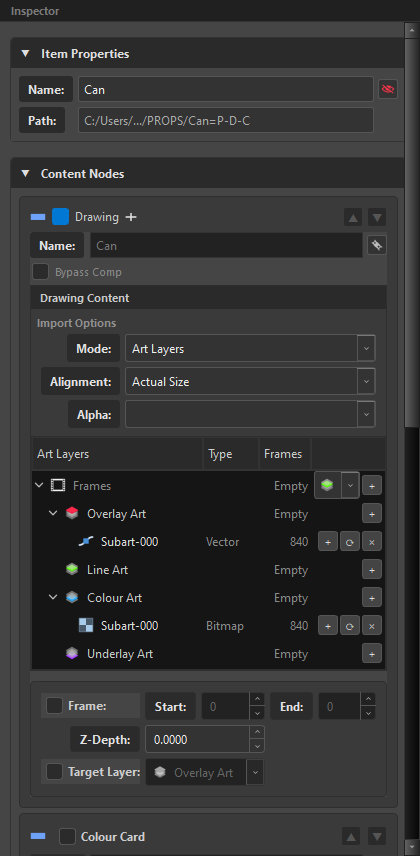
It shows only what the row can have
Select a frame, an art layer or a subart layer and the Hierarchy and Effects sections disappear — a cel has no peg and no glow; those belong to the drawing node above it. The Frames folder and a Template hide the Content section too, and lock their names.
Hidden rather than greyed, on purpose: a disabled control says "not now", and the honest answer here is "never, on this kind of row". See Conversions — including how to free a frame so it can carry those things again.
The four sections
| Section | Holds |
|---|---|
| Item Properties | the slot's name and where it came from |
| Content Nodes | what the slot contains — the drawing, generators |
| Hierarchy Nodes | what the slot builds around it — Backdrop, Group, Peg, Composite |
| Effects Nodes | the effect chain |
Sections collapse. A section with nothing ticked stays collapsed, so the Inspector shows you the slot's answer rather than the full questionnaire.
Reading a component block
Every block — Drawing, Peg, Group, Composite, Backdrop, each effect, each generator — is built the same way:
▬ ☑ Peg  +                              ▲ ▼
  Name: [ Effects-P            ]  🔗
  … the component's own controls …
| Part | Means |
|---|---|
| The bar on the left | the component's colour in the Node View |
| The checkbox | whether this component is created at all |
| The name | what the node will be called |
| 🔗 link | the name follows the slot's name |
+ |
add another of this component |
| ▲ ▼ | reorder, where order is meaningful |
The status marker
The shape beside a component says whether it already exists in the scene:
| Shape | Means |
|---|---|
 |
new — staging only, not in the Node View yet |
 |
existing — this node is already in the scene |
| (nothing) | disabled — the component is unticked |
The marker is a shape, not a colour, and it appears only in the Inspector. The tree marks one state and leaves every other row unmarked, because a mark on every row is a texture, not a signal.
An existing component is not created again — it is edited where it already is. See Re-editing an Assembled Scene.
The link button
 Linked — the component's name is derived from the slot: rename
 Can and you get Can-P, Can-G, Can-C.
 Unlinked — you typed a name and it stays, whatever the slot is called.
This is what makes renaming a super node a one-edit operation. See Super Nodes.
Item Properties
| Field | Says |
|---|---|
| Name | the slot's name — rename here or with F2 in the tree |
| Path | where the content came from: a file path, or New Node (Memory) for something you created |
New Node (Memory) is not an error — it means this slot has no file behind it yet.
Content Nodes
Drawing
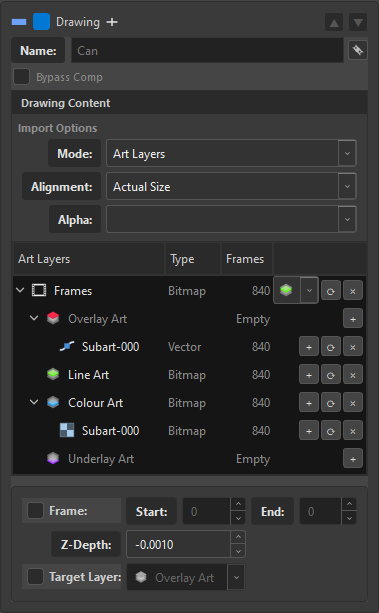
| Control | Does |
|---|---|
| Name | the Read node's name |
| Bypass Comp | the drawing skips the composite |
| Mode | Art Layers or Original Bitmap — see Importing |
| Alignment | how the image is fitted to the scene |
| Alpha | how transparency is interpreted |
| Art Layers table | the four layers, their type, their frame counts |
| Frame / Start / End | the container's own exposure, and holds |
| Z-Depth | forward/back in the composite order |
| Target Layer | which art layer the container's own artwork goes to |
On a frame or an art layer, the same block appears with only the fields that apply:
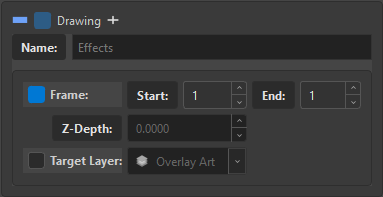
That is not a different panel — it is the same Drawing block, with the artwork-level fields and nothing else. See Art Layers.
Colour Card and Gradient
Generators live in Content Nodes, not in Effects, because they produce rather than transform. See Generators.
Hierarchy Nodes
Backdrop

Name, and a colour swatch. The colour is the only thing about your Node View organisation that a stranger reads in three seconds.
Group
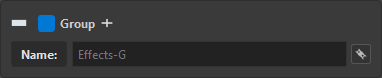
Name only. A group's job is scope, and scope has no settings.
Peg
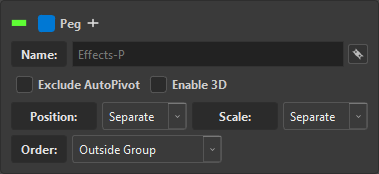
| Control | Options | Does |
|---|---|---|
| Exclude AutoPivot | on/off | leave this peg's pivot alone |
| Enable 3D | on/off | make it a 3D peg |
| Position | Separate / 3D Path |
separate X/Y/Z channels, or a path |
| Scale | Separate / Locked |
independent axes, or uniform |
| Order | Inside Group / Outside Group |
whether the peg is the group's child or its parent |
Exclude AutoPivot is what pegs coming from .anm and .pvt set automatically — those pivots belong to the bake. See Transform Sync.
Composite
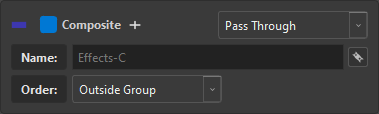
| Control | Options |
|---|---|
| Mode (top right) | As Bitmap, As Seamless Bitmap, As Vector, Pass Through |
| Order | Inside Group / Outside Group |
The mode combo sits in the header, beside the checkbox, because it is the composite's defining property rather than one field among several.
See Structure Nodes for what each mode does and why Inside/Outside changes what the comp receives.
Effects Nodes
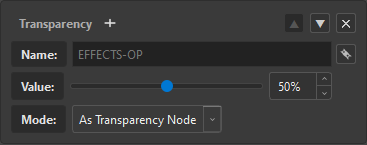
The chain, top to bottom, with + at the bottom to add. Full reference: Effects.
Multi-selection
Select several rows and the Inspector edits all of them. The fields show the first selection's values; changing one writes it to every selected slot.
That is how you set Alignment: Fit on forty drawings, or tick Peg on a whole branch, in one gesture.
Maths in every number field
Every numeric field accepts an expression: type 1920/2, 12*3, 100-15 and press Enter.
The parser is a whitelist — it evaluates arithmetic and nothing else — and it is the same one in the other Octo tools, so the habit carries between them.
Why one Inspector for everything
A folder, a PSD layer, an image sequence, a frame and an art layer are the same object in OSA, differing only in what is ticked. One Inspector is the direct consequence, and it is what makes the tree safe to rearrange: dragging a drawing onto another drawing does not convert it into a different kind of thing, so nothing has to be thrown away to make the drop legal.