Split & Merge
Two verbs, and their opposites. Split takes a slot apart into the components it was going to build; Merge puts several slots into one.
Both are staging-only. Nothing has been written to Harmony yet, so both are free and both undo.
Split Layers
Right-click a slot → Split Layers, and choose a mode:
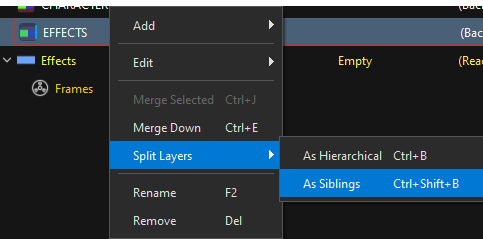
| Mode | Shortcut | Result |
|---|---|---|
| As Hierarchical | Ctrl+B | the components come out nested: BD → P → G → D → C |
| As Siblings | Ctrl+Shift+B | the components come out flat: BD, P, G, D, C all side by side |
The order is always the same — Backdrop, Peg, Group, Drawing, Composite. What the mode changes is whether each one becomes the parent of the next, or its sibling.
When you want hierarchical: the slot was right, you just need to get inside it — to put something between the peg and the drawing, or to give the group a second child.
Where each piece lands in a hierarchical split
The result is not a guess — it is the aggregation rule played backwards.
Backdrop, Peg and Group nest as parents of one another, in that order. They are the containers, so they become the chain.
Composite and Drawing do not nest — they are siblings, and the comp is the elder one. That is forced by the sibling-aggregator rule: a comp collects the siblings below it, so it has to come first for the drawing (and everything after) to flow into it.
Whatever the super node already contained falls in as the younger siblings of that pair, each with its own hierarchy intact.
hero=BD-P-G-D-C            splits into        BD
├── arm  (its own branch)                     └── P
└── leg  (its own branch)                         └── G
                                                   ├── C     ← eldest: collects everything below
                                                   ├── D     ← the super node's own drawing
                                                   ├── arm   ← the tree's children, hierarchy and all
                                                   └── leg
So hero-C ends up collecting D, arm and leg — which is exactly what the super node was compositing before it was split. The split changes the shape of the tree, not the shape of the render.
Effects, if there were any, chain off the composite in the order they had, each nested in the previous one.
Why the drawing lands under the comp and not above it
Because a comp aggregates its younger siblings. Putting the drawing first would mean the drawing is not collected by anything, and the comp would gather only what came after it. Comp-then-drawing is the only order that survives a re-assemble unchanged.
When you want siblings: the slot was carrying two ideas. Flattening lets you re-parent the pieces freely, and re-combine the ones that belong together.
Split works on what is selected, and only that
The descendants of a selected row are not dragged along automatically. This used to differ between the menu and the shortcut — the menu took children even with the branch open, the shortcut didn't — and now both do the same thing: what you selected is what splits.
Merge
| Verb | Shortcut | Does |
|---|---|---|
| Merge Selected | Ctrl+J | combines every selected slot into one, recursively |
| Merge Down | Ctrl+E | merges a slot into its next sibling |
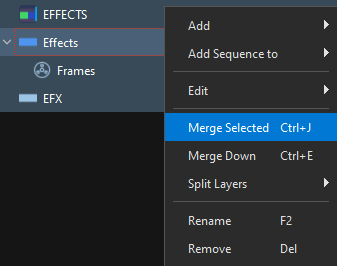
Merge Selected is the inverse of a siblings-split: five rows that should have been one slot become one slot, with the components unioned. If one row carried a peg and another carried a composite, the merged slot carries both.
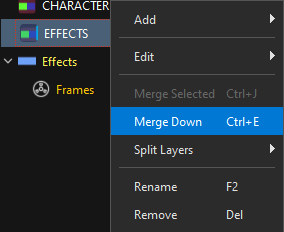
Merge Down is the fast one-handed version: it folds a row into the row below it. It is the same verb Harmony users already have in the Timeline, with the same meaning.
Merge is greyed out when it cannot apply — fewer than two nodes selected, or a selection that spans things that cannot combine. The menu never offers a verb that would do nothing.
Splitting and merging frames
Frames obey the same two verbs, with one extra guard: the Split/Merge Frames checkbox in the Browser's Settings section must be on. It is off by default.
With it off, OSA refuses and names the checkbox instead of silently doing something else:
Enable 'Split/Merge Frames' checkbox to merge/suck frames Enable 'Split/Merge Frames' checkbox to separate layers
Why a guard at all: structural edits rearrange a plan, but frame edits rearrange timing, and timing is the thing a hand-off is judged on. The checkbox is the difference between "I meant to restructure" and "I meant to re-time".
With it on, the frame modes are:
| Mode | Groups by |
|---|---|
| Standard | one container per frame (or per block) |
| Prefix | by name prefix — Pig-1, Pig-2, Pig-3 collapse into one Pig |
Prefix mode is what you want after importing a folder where several sequences were mixed together: it re-discovers the sequences from the names.
Vampire Mode
When Split/Merge Frames is on and you merge two or more rows that carry drawings, the merge stops being structural and starts sucking frames. Internally that is called Vampire Mode, and it is the difference between:
| Structural merge | Vampire Mode | |
|---|---|---|
| Combines | the components (peg, group, comp, effects) | the components and the exposures |
| Result | one slot with the union of what was ticked | one drawing carrying every frame from all of them |
| Needs | nothing | Split/Merge Frames on |
It works in both directions of the tree: a leaf drawing sucks a sibling drawing's frames, and a branch (a group) sucks them into the drawing it contains.
Split and merge carry the artwork with them — that is the verb's invariant
Merging 001 (one frame) with 002 (one frame) must give you a container with two frames. There was a measured bug where the leaf-to-leaf case transferred nothing and the second frame — with its artwork — simply vanished. The rule now has a name: split and merge carry the artwork with them, and there is no path where a frame disappears because two rows became one.
Sequential or Original
A vampire merge has to decide what the frame numbers become, and both answers are legitimate:
| Mode | Frame numbers |
|---|---|
| Original | kept exactly as they were — they may overlap |
| Sequential | renumbered 1, 2, 3… in merge order |
After the merge, the feedback bar reports which one it used and offers the other as a one-click action:
Merge Result: Original — Switch to Sequential
Clicking it undoes and re-merges in the other mode, so you compare results instead of guessing up front. Use Original when the numbers are the timing (a sequence with real gaps); use Sequential when you are assembling a new exposure list out of loose drawings.
Generators in a merge
Generators do not fold into the accumulator — a GENERATOR_TYPE on the merged slot would turn the slot itself into a Colour Card. They become children of the result instead, in merge order, and the drawing's position among them is recorded. The order in which you merge is the stack order in the composite.
What happens to the artwork
The policy is the same one that runs through the whole tool, and it is the reason both verbs are safe:
Nothing is discarded because the hierarchy changed.
| Situation | Result |
|---|---|
| A container that becomes a child | keeps its own artwork |
| A frame merged with another | its artwork merges over the art layers it points at |
| Several tracks on one art layer | flatten in tree order, top first |
| A source that could not land | survives in your tree rather than being deleted |
See Drawings, Art Layers & Subart for the stack rules and Original Bitmap for the mirror case.
Split, fix, merge is a normal working rhythm
Splitting a slot to correct one component and merging it straight back is not a workaround — it is the intended way to edit structure that was inherited from a file name or a PSD, without re-importing anything.