Drawings, Art Layers & Subart
A Harmony drawing is not one image. It is four stacked layers — Underlay, Colour Art, Line Art, Overlay — and OSA lets you aim artwork at any of them, stack several images on one of them, and do it per exposure.
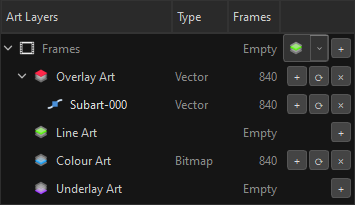
The four art layers
Top to bottom, as Harmony draws them:
| Layer | Tag | Typically | |
|---|---|---|---|
 |
Overlay Art | OL |
effects painted over everything |
 |
Line Art | LA |
the drawing's lines — the default |
 |
Colour Art | CA |
flats and paint |
 |
Underlay Art | UL |
roughs, guides, anything under the paint |
Artwork with no art-layer tag goes to Line Art. That default is a single constant read by the collector, the Inspector and the stack logic, so there is exactly one answer to "where does untagged art land?".
Reading the table
The Inspector's Art Layers table is the truth about one drawing:
| Column | What it says |
|---|---|
| Art Layers | the four layers, plus any subart nested under them |
| Type | Vector or Bitmap — per layer, not per drawing |
| Frames | how many exposures that layer actually has artwork on |
A drawing can be vector and bitmap at once
Line Art in vector and Colour Art in bitmap is legal in Harmony, and OSA authors it. That is why Type is a column in this table and not a setting on the drawing: the kind belongs to each layer, decided by the artwork that lands on it. A single switch on the container could only ever be wrong about half of them.
Each row carries its own buttons:
| Button | Does |
|---|---|
+ |
add artwork to this layer — a file, or a whole sequence |
⟳ |
replace what is there |
✕ |
clear the layer |
Subart layers: one art layer, several images
An art layer can hold more than one image. Those extra images are subart layers, and they read as a stack.
Overlay Art          ← the layer
└── Subart-000       ← a track on it
One image does not pay for hierarchy. The first sequence to reach a layer lives on the art-layer row itself, flat — there is no track to expand, because there is nothing to order yet.
The second one goes underneath, and the first one stays put. The art layer keeps its own artwork and the newcomer becomes a child, at the bottom of the stack. Nothing moves under your hand: the row you just imported is where you left it.
That follows from the model rather than from taste: a slot here carries artwork and has children at the same time — exactly how Photoshop treats a layer, and how the collector reads it. Pushing the first image somewhere else would rearrange the tree to say something it already said.
Promotion still exists, for the one case that needs it: putting a track above the layer's own artwork. There is no index above the layer's own row, so dragging a slot there pushes that art down into a track and the newcomer takes the top. The gesture is just the drag; the context menu says the same thing in words — "Move this layer's artwork into the stack".
Tree order is stack order: the first child is the top. The collector reads exactly that, so what you see in the tree is what composites in Harmony.
Why nested and not flat siblings
Two siblings claiming the same art layer is an error in this app — OSA paints both red and refuses the operation. Nesting keeps the invariant intact: there is still exactly one Overlay on the frame, and the stack is its content.
Names are yours, and depth has no ceiling
Subart-000 is only the default name a new track is born with — the same default Octo Vector Bridge uses when it names a pass. Rename it, in either tool, to whatever the shot calls it. Nothing downstream matches on that string: OSA reads a folder of tracks by structure, taking the numbered ones (01_contour, 02_detail) in number order and any unnumbered ones alphabetically after them. A pass you renamed to rim_light imports exactly like one you left alone.
What the folder names do have to say is the art layer: OSA reads Underlay, Colour Art / Color Art, Line Art, Overlay, the hints ink and line, and the bare codes UL / CA / LA / OL as whole words — the same grammar OVB writes with, so an export drops straight in. (Whole words on purpose: a folder called Fola must not become Line Art for containing the letters.)
And a stack has no ceiling. A track can hold tracks, in as many levels as you want — the + on any row adds a sequence inside that row, a folder import reads nested track folders recursively, and dragging in the tree does the same. However deep it goes, it all flattens into the one art layer at the bottom of it; the depth is for organising the way you think, not something Harmony will ever see.
Each track says what kind of data it is
A subart row carries the icon of its content type, read from the source file — not from a setting:
| Means | |
|---|---|
 |
vector — an .svg written as native strokes, or a .tvg |
 |
raster — a PNG, TGA, TIFF, JPEG or a PSD layer |
The two are drawn to be told apart at a glance, because at 14 pixels you read the shape, not the detail:
- vector is an anchor point on a curve — a solid blue square sitting on a pale S-curve that passes through it. It is the bezier handle every drawing program shows: a point you can grab, on a line defined by maths.
- raster is a checkerboard — a two-by-two grid of light and dark squares inside a grey frame. It is the pixel grid, and the same checker every image editor uses to mean "these are samples, not shapes".
One is a curve you could still edit; the other is a grid of values. That is the whole difference between the two formats, and it is the whole difference between the two icons.
One art layer cannot mix vector and raster
Harmony's art layer is one or the other. Stack an .svg and a .png on the same Colour Art and they cannot both be written.
The top track sets the layer's type, and the tracks of the other kind are skipped — named, one by one, in the import report:
vector and bitmap in one art layer: the top track is vector, so 2 bitmap track(s) were skipped (flats.png, shadow.png)
It is a note, not a failure: the build happened, just not entirely. And the skipped tracks stay in your staging tree — OSA only flattens what actually landed, so nothing you authored is deleted for having lost a stack. Move them to another art layer, or convert them, and they land next time.
Two or more vector tracks on one layer are fine: they live side by side, drawn base to top, and the last one drawn sits on top.
Moving artwork around
Nothing here is one-way. Two context menus cover the moves, and they answer two different questions.
In the tree: send a layer to another layer
Right-click an art layer in the staging tree and three submenus appear, each listing the four layers:
| Verb | Does |
|---|---|
| Move to | the artwork leaves this layer and lands on that one |
| Copy to | it lands there and stays here |
| Swap with | the two layers exchange contents |
So flats that came in on Line Art go to Colour Art without re-importing anything, and a pair that arrived the wrong way round is fixed with one Swap.
Every destination is decided by a plan before you see it: OSA works out what would happen to each of the four layers, and lights up only the ones with something to do. A destination that cannot work is greyed out with the reason in its tooltip rather than missing — in an app with no preview, an entry that dies in silence reads as a bug.
On a container, it means every frame
Right-click the drawing  instead of one layer and the same three verbs apply to all of its frames at once. It is the same plan and the same action, just handed every movable layer in the container — a hundred frames retargeted in one gesture, and one Ctrl+Z.
In the Art Layers panel: container ⇄ stack
Right-click a row in the Inspector's Art Layers panel and the menu offers the move that row can make:
| On this row | The entry | What it does |
|---|---|---|
the drawing  |
Move the drawing's artwork into <Layer> |
the drawing's own art stops being the drawing's and becomes a track on the layer its dropdown names |
| an art layer |
Move this layer's artwork into the stack | the art on the layer's own row moves down into a track, freeing the top of the stack |
| a subart track |
Use as <Layer>'s own artwork |
the track climbs out of the stack and becomes the layer's own art |
| a subart track |
Use as the drawing's own artwork | the same, but it becomes the drawing's art instead |
The icons are the panel's own. The drawing row wears the frame icon, each layer wears its chip — and a track wears its data kind, vector or bitmap, read from its file. The two track rows above show the same bitmap icon only because it is one example track: the two entries exist on every track, whatever its kind.
That is the pair you use to say "this one goes on top" without dragging: push the container's art down into the stack, then pull the track you want up into its place.
The refusals are worded, not hidden. An entry greys out and says which of these it is:
- "this slot carries no artwork" — there is nothing to move;
- "this slot has slots inside it — its children would be left with no parent";
- "
<Layer>already has its own artwork — move that one into the stack first".
The last one is the invariant the whole panel rests on: one row, one artwork. Two images silently landing on the same slot would replace somebody's drawing, and that is precisely what promotion exists to prevent.
Sequences land on a layer, not on the drawing
Drop a 120-file sequence on Colour Art and OSA works out the landings frame by frame. It tells you, before doing anything:
- how many new frames the sequence forces (it is longer than the container),
- how many existing frames end up with no artwork on that layer (it is shorter),
- which art layers get promoted into containers.
Neither a longer nor a shorter sequence is an error. Both are said.
Why a container can still carry artwork
This is the question the tree keeps raising, and the answer is the same one from Concepts:
Every row is the same row. What differs is only which boxes are ticked.
A drawing that arrived as a flat PNG can become a container the moment you drag something onto it. If becoming a parent meant losing your artwork, every drag would be a chance to destroy a drawing silently. So the container keeps what it had, and the artwork sits as a peer of the children rather than being replaced by them.
That is why you will see, and why it is correct:
- a frame with its own artwork and art layers beneath it,
- an art layer with its own image and subart layers beneath it.
Those two are the only rows that hold artwork at all. A drawing node does not — it is a Read pointing at an element, and in Harmony the pixels always live in an exposed cel. Neither do structure nodes, generators or effects.
So when a row that carries artwork becomes a drawing node, the art does not vanish and it does not stay put: OSA creates the intrinsic Frames folder with a frame 1 inside, and the artwork migrates down into it. One home, never two — two copies would make the collector read the same source twice and the writer would record the second read as a loss.
See Concepts for the full table of what holds artwork and what does not.
The combination is resolved by the merge policy at Assemble, not by throwing anything away:
| Situation | What Assemble does |
|---|---|
| A frame has its own artwork and art layers | the frame's artwork merges over the art layers it points at |
| An art layer has several tracks | they flatten into one image, in tree order, top first |
| A container points at a layer that already has art | the pointed-at layer receives; nothing else is touched |
| A row carrying artwork becomes a drawing node | a Frames folder and frame 1 appear, and the artwork moves into the frame |
The stack exists only in OSA
This is the part worth being very clear about, because it changes what you should expect to find in Harmony afterwards.
Harmony has no subart layers. A drawing there has exactly four internal layers — Underlay, Colour Art, Line Art, Overlay — and that is the whole vocabulary. The stack you build in the tree is an authoring structure: a way to say "these five images all belong on Overlay, in this order" without merging them by hand first.
At Assemble, the stack is spent. Every image in it is composited down into the one art layer it was aimed at, in stack order, and what lands in Harmony is a normal drawing with a normal Overlay. Nothing in the scene remembers that there were five tracks — that memory lives in your staging tree, and in the session OSA saves.
The order, top to bottom
Three rules decide what covers what, and they compose:
- The frame's own artwork is always on top — above everything the frame's art layers hold. It lands on the layer the frame's Target Layer points at. So a frame pointing at Line Art covers the Line Art container's own image and all of its tracks.
- A container is above its children. An art layer that holds an image and has subart layers beneath it puts its own image at the top of its own stack.
- Tree order is stack order, first child on top — for art layers among themselves, and for tracks inside one.
Read as a single picture, for a frame pointing at Line Art:
the frame's own artworkTarget Layer → Line Artthe Line Art container's own imagecontainer above its childrensubart track — first childtree ordersubart track — a bitmapskipped: this layer is vectorone Harmony Line Art layervector; no tracks surviveRow 4 is the part worth pausing on. It is a bitmap track on a vector layer, and Harmony has nowhere to put it: an art layer is one kind or the other. The top of the stack decides — here the top is vector, so the bitmap is left out, named in the import report, and kept in your tree so you can move it, convert it, or reorder the stack and try again.
Move that same bitmap to Colour Art and nothing is lost, because there it is the top:
the Colour Art container's own imagetop of this stacksubart track — another bitmapsame kind, no conflictone Harmony Colour Art layerbitmapThe remaining art layers of the drawing are built the same way, each into its own layer — Underlay, Colour Art, Line Art and Overlay never mix with one another.
Which is why the tree is worth keeping
Because Harmony cannot hold the stack, the staging tree is the only place the decomposition survives. Re-open OSA and the session comes back with the tracks intact; the assembled scene alone cannot tell you what was flattened into what.
After Assemble, the node is no longer new
Pressing Assemble does two things at once, and the second one is easy to miss: the nodes are built in Harmony, and the slot that built them stops being new  and becomes existing
  — the status marker in the Inspector. From then on that row is a description of something that is really out there.
The flattening happens at that same moment. Whatever the stack was, each art layer now holds one image in Harmony — that is all Harmony can hold.
So a drawing read back from the scene comes in flat. Whether you re-open OSA on a scene you assembled yesterday, or pull an existing drawing in from the Node View, what you get is the frames that actually have artwork, each with its art layers filled — and no subart layers, because there are none out there to report. In Original Bitmap there are no art layers either: the artwork sits on the frame itself.
You can keep working on it exactly as before:
- take the artwork out of a container and make it a track (right-click → Move this layer's artwork into the stack), then stack more on top of it;
- add new tracks, reorder, retarget;
- press Assemble again — an existing node adds and removes what changed, rather than rebuilding from nothing.
Deleting scene artwork is a decision, not an accident
Artwork that came from the scene is not destroyed when you delete it in OSA. The row is marked as a staged removal — an amber border, and a tooltip saying it "will be removed from the scene on the next Assemble" — and the right-click menu offers Revert to original sequence.
So the delete is reversible right up until you assemble, and only then does it touch the scene. That gap is the point: pulling a drawing in from the Node View and changing your mind should cost you nothing, and an undo that only exists inside one session is not enough when the artwork is somebody else's.
Target Layer
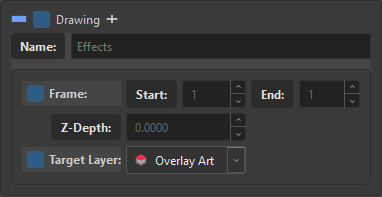
Target Layer is the container saying "my own artwork goes here".
It is the drawing's answer for its own art — the art layers listed above it are its children's business. When a frame carries artwork directly, the tree's Details column shows the layer it will land on ([Overlay], [Colour Art]…), so you can read a hundred frames without selecting one.
In Original Bitmap mode there are no art layers at all, and the Details column says [Original Bitmap] instead — naming a layer there would be a lie. See Original Bitmap.
Frame, Start / End and Z-Depth
The three fields under the table apply to the container's own artwork:
| Field | Meaning |
|---|---|
| Frame (with Start / End) | the exposure this artwork occupies; Start ≠ End is a hold |
| Z-Depth | pushes this drawing forward or back in the composite order |
| Target Layer | which art layer receives it |
Z-Depth can also be written straight into the name as a tag: Z0.1, 0.5F, 10B.
Multiple tracks in the tree
When a layer holds more than one track, the tree's Details column says so:
Overlay Art [Overlay] 3 tracks
One track announces nothing — that is the normal, flat state. From two upward the count appears, because otherwise the only way to know artwork was stacked there would be to expand the row.