Interface Overview
Three columns, left to right, in the order work flows through them.
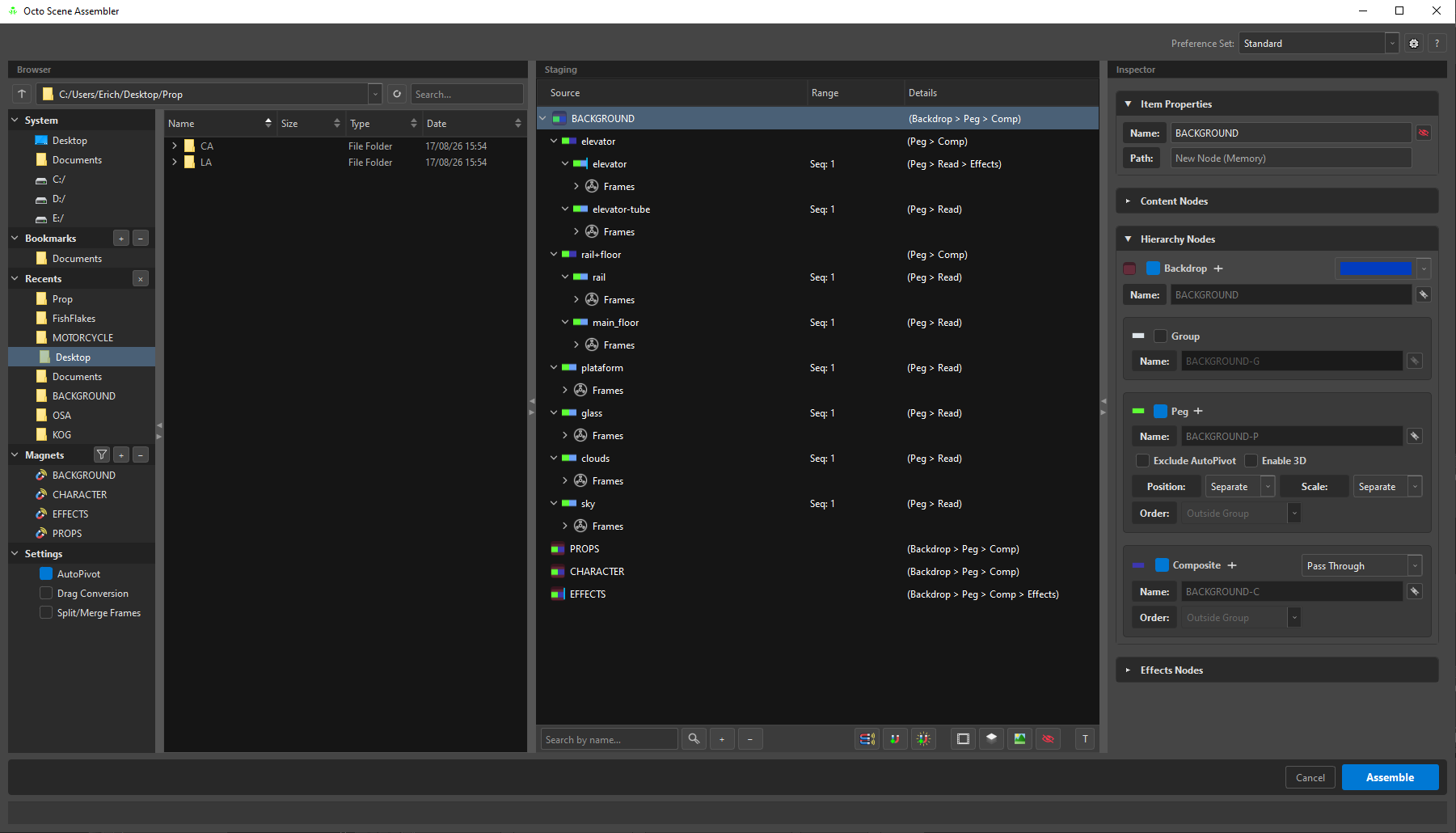
| Column | Is |
|---|---|
| Browser | what exists on disk |
| Staging | the plan |
| Inspector | the selected slot's settings |
The splitters between them are collapsible — click the arrow on a splitter to fold a column away when you need the width.
Top bar

At the top right, above the Inspector:
| Control | Does |
|---|---|
| Preference Set | the active bundle of defaults — see Preferences |
| ⚙ | open Preferences |
| ? | help — documentation, bug report, about |
Browser
Path bar, file list, and four sections: System, Bookmarks, Recents, Magnets, plus Settings.
Full page: Browser & Bookmarks.
Staging
The middle column, and the reason the tool exists.
The three columns of the tree
| Column | Says |
|---|---|
| Source | the slot's name, with its icon |
| Range | its exposures: Seq: 1-840, Frame 3, Hold: 5-8, Empty, Template |
| Details | what it will build: (Backdrop > Peg > Comp), the art layer, the z-depth |
Details is the payoff. It is how you read a hundred rows without selecting one — the chain is written in wiring order, so (Peg > Read > Comp) is literally the shape of what lands in the Node View.
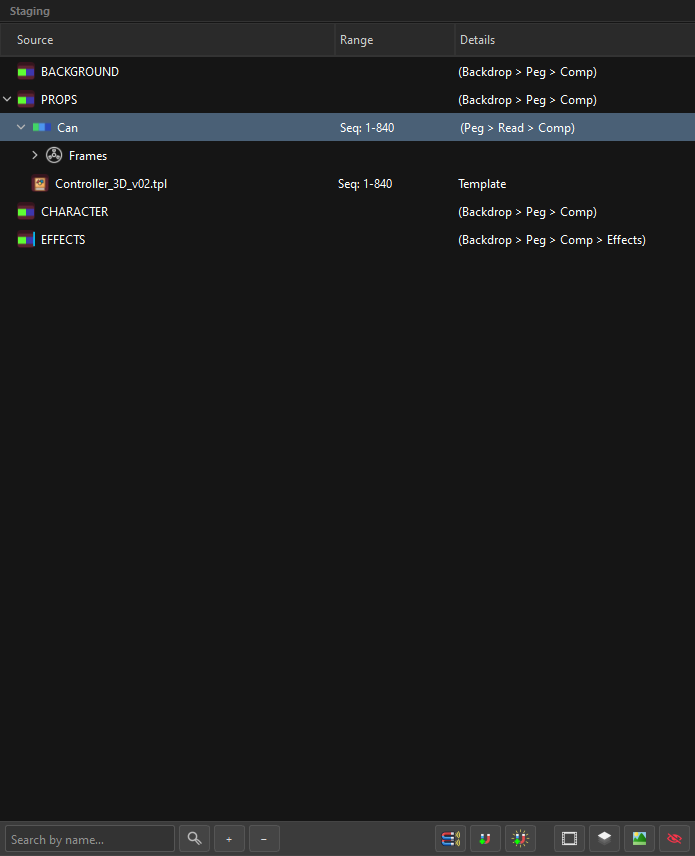
The Staging toolbar

Left group — what is in the tree:
| Control | Does | |
|---|---|---|
| Search by name | filter the tree | |
 |
Find/Filter | search options |
+ |
the Add menu — the same one the right button offers | |
− |
remove the selection |
Right group — scene verbs, then view toggles:
| Control | Does | |
|---|---|---|
 |
Magnetize Scene | read the existing Harmony scene through your magnets |
 |
Generate Magnet Tree | one slot per active magnet |
 |
Generate + Assemble | the same, straight into the Node View |
 |
Hide Frame folders | collapse timing out of the view |
 |
Hide Art Layers | collapse the insides of drawings |
 |
Thumbnails | show a thumbnail on mouse hover |
 |
Show/Hide All Tags | show the tag suffixes in the names — and once shown, they are editable |
The toggles are ordered from the most structural to the most decorative: the first two hide rows, the third changes how a row is drawn, and the last one changes what a name shows.
If a tag is shown, it is editable. With tags visible, the row reads Head=P-G and that line is the state: delete the -G and the group is gone; type =BD and the backdrop is on; rename Head to Cabeca and the tags stay. The same edit is available in three places — the row in the tree, the Name field in the Inspector, and the Inspector's checkboxes — and whichever one you use, the other two follow. With tags hidden, renaming touches only the name and leaves every tag as it was.
Hide Frames is the one you will use most
A drawing with 840 exposures is 840 rows. When you are working on structure, hide them: the tree goes back to being about the scene instead of about the timing.
Inspector
The right column edits the selected slot — or all selected slots at once. Four sections: Item Properties, Content Nodes, Hierarchy Nodes, Effects Nodes.
Full page: The Inspector.
The bottom bar
Cancel and Assemble, with the feedback bar underneath.
The feedback bar
Messages arrive on colour-coded channels, several at once, newest at the bottom:
| Colour | Means |
|---|---|
| Blue / neutral | information — what just happened |
| Green | done |
| Yellow | a warning: it worked, but not the way you might assume |
| Red | a blocker: Assemble is disabled until it is resolved |
Some messages are permanent (a state that is still true) and some are temporary (an event that has passed, gone after a few seconds). A message that carries an action — Restore, Dismiss — gets buttons on the row rather than a dialog in your way.
The bar only speaks up for the exception
There is no "ready to assemble" line, and an empty tree does not paint the bar red. Both used to be there, and both were removed on purpose:
- A bar that always has something in it is a bar you learn not to read. It exists for the exception, and "everything is fine" is not one. The blue Assemble button being clickable already says it, in the place your hand is already going.
- Opening OSA on an empty scene is the normal way to start, not an error. Greeting you with red would teach you to ignore red.
So the Assemble button is disabled in two different situations, and they are answered in two different places:
| Why it is grey | Where the answer is |
|---|---|
A red validation message stands (nested frames, orphan art layers, a broken D tag…) |
the feedback bar — the message is the reason |
| There is nothing staged yet — the tree is empty | the button's own tooltip, and the hint box above the tree |
That split is deliberate. The empty-tree gate is derived from the graph itself, not from a message someone wrote: when the two were the same string, clearing the bar would have enabled the button.
One more distinction worth knowing: only the validator's red — the description of the tree as it is right now — gates Assemble. A red that reports an event ("the assemble failed", "no active magnets") does not, because a failure from ten minutes ago says nothing about the tree on screen today.
Everything is undoable
Ctrl+Z / Ctrl+Y throughout the staging tree. Nothing in this window touches Harmony until Assemble, so the entire plan is free to rearrange.
The only exception is Rename in the Browser, which renames a file on disk.