Preferences

The Preference Set combo lives in the main window's top bar, with ⚙ (preferences) and ? (help) beside it. The set named there is the one in force — see The active set is what Generate builds.
Open the dialog with ⚙. Two tabs: General and Keyboard Shortcuts.
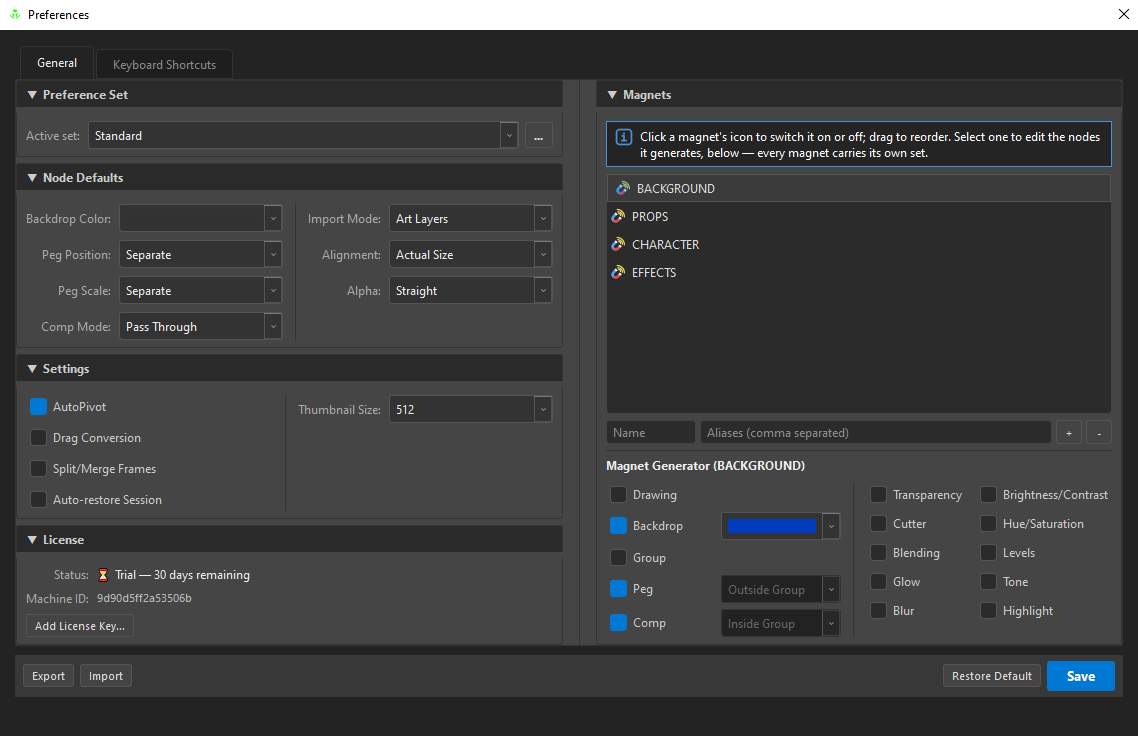
Preference Set
Active set is the bundle of defaults every new slot is born with. The … button beside it creates, duplicates, renames and deletes sets.
Sets are how you carry a show's conventions: one set per production, switched from the combo in the main window's top bar. Export and Import at the bottom of the dialog move a set between machines — that is how you give a whole team the same defaults.
Node Defaults
What a newly created slot starts with. None of these are locks — they are the starting position, and any slot can differ.
| Setting | Options |
|---|---|
| Backdrop Color | the colour a new backdrop is born with |
| Peg Position | Separate / 3D Path |
| Peg Scale | Separate / Locked |
| Comp Mode | As Bitmap / As Seamless Bitmap / As Vector / Pass Through |
| Import Mode | Art Layers / Original Bitmap |
| Alignment | Actual Size, Project Resolution, Fit, Vertical Fit, Horizontal Fit, Pan |
| Alpha | Premultiplied with Black, Straight, Premultiplied with White, Clamp Colour to Alpha |
See Importing Files for what alignment and alpha mean, and Structure Nodes for the composite modes.
Settings
The same three toggles that appear in the Browser's Settings section, plus two more:
| Setting | Does |
|---|---|
| AutoPivot | place pivots from the artwork instead of leaving them at the origin |
| Drag Conversion | a drop inside the tree means "become this" rather than "go under this" |
| Split/Merge Frames | unlock the frame-level split and merge verbs |
| Auto-restore Session | bring the previous session back automatically on open |
| Thumbnail Size | the resolution thumbnails are generated at (e.g. 512) |
Auto-restore Session is the one worth a thought: with it off you are offered the previous session and decide; with it on it simply comes back. See Sessions & Crash Recovery.
License
Status, the masked key and the machine ID, with Change License Key… and Deactivate. See Licensing & Activation.
Magnets
The right-hand half of the General tab is the magnet editor, and it does more than the Browser's list:
Click a magnet's icon to switch it on or off; drag to reorder. Select one to edit the nodes it generates, below — every magnet carries its own set.
| Action | How |
|---|---|
| Toggle active | click the magnet's icon |
| Reorder | drag — the order here is the order Generate Magnet Tree creates them in |
| Create | type a Name and optional Aliases, press + |
| Remove | select and press − |
Magnet Generator
Selecting a magnet opens Magnet Generator (NAME) underneath, and this is the part that makes magnets more than folders: every magnet carries its own recipe for the slot it generates.
| Column | Controls |
|---|---|
| Structure | Drawing, Backdrop (with colour), Group, Peg (with Inside/Outside Group), Comp (with Inside/Outside Group) |
| Effects | All ten — Transparency, Cutter, Blending, Glow, Blur, Brightness/Contrast, Hue/Saturation, Levels, Tone, Highlight |
So BACKGROUND can generate Backdrop > Peg > Comp in blue while EFFECTS generates the same plus a Transparency and a Blur — and Generate Magnet Tree builds each destination the way that destination should be built.
The effects column is generated from the same table the rest of OSA reads, so it can never offer fewer effects than the tool builds — and the eleventh effect appears here on the day it is added, with nothing to remember.
There are no order combos here, and there is nothing missing: the chain order is the position in the list, exactly as it is in the Inspector. Three combos used to sit in this column (After Transparency, Before Glow/Blur, Glow → Blur) and they were a second answer to a question that already had one — two sources for the same order is how they drift apart. Removing them is also what made room for all ten effects without the panel growing a single pixel taller.
The active set is what Generate builds
Magnets, their order, which are active and every generator recipe live inside the preference set — not globally. Pressing Generate Magnet Tree or Generate + Assemble builds whatever the set selected in the top bar says, so a different show is a different set rather than a different procedure.
Factory Standard: BACKGROUND (blue), PROPS (green) and CHARACTER (orange) are born Backdrop > Peg > Comp; EFFECTS (purple) is born the same plus Transparency, Glow and Blur.
Keyboard Shortcuts
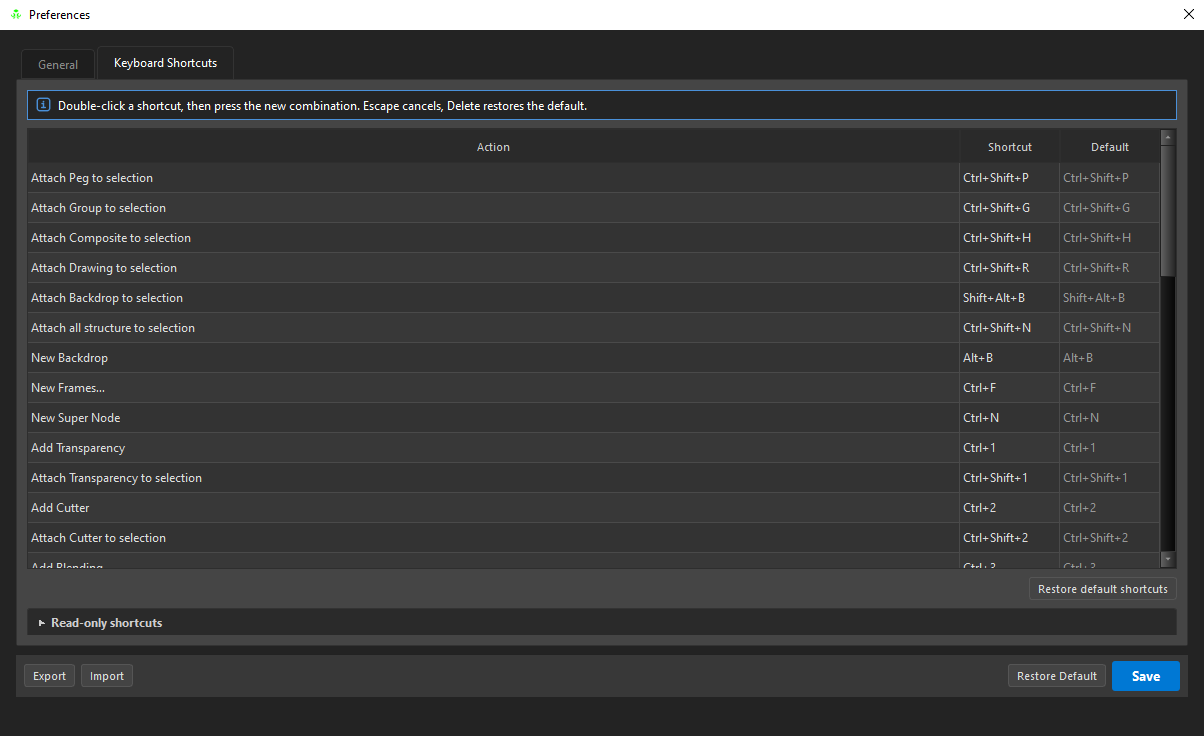
Double-click a shortcut, then press the new combination. Escape cancels, Delete restores the default.
The table has three columns — Action, Shortcut, Default — so a rebound key always shows what it used to be. Restore default shortcuts resets the lot.
Read-only shortcuts at the bottom expands to the bindings that cannot be changed, because they belong to the host or to a text field rather than to OSA.
Full list: Keyboard Shortcuts.
Rebinding changes the menus too
Every hint in the context menus is read from this table, not typed into the menu. Rebind Merge Down and the menu says the new combination on the next open — no menu label can go stale.
Export / Import / Restore Default / Save
| Button | Does |
|---|---|
| Export | write the active set to a .json |
| Import | load one |
| Restore Default | return the active set to factory values |
| Save | commit the changes |
Edits are made on a scratch copy — closing the dialog without saving leaves the running app's settings alone.