Context Menus
Two trees, two menus. Everything here is also a keyboard shortcut, and the hints in the menus are read from the shortcut registry — rebind a key and the menu says the new combination next time it opens.
In the Browser
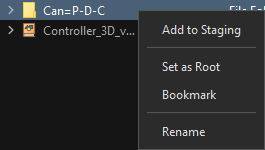
| Item | Does |
|---|---|
| Add to Staging | the same as dragging the item in |
| Set as Root | make this folder the top of the Browser |
| Bookmark | pin it to the Bookmarks section |
| Rename | rename the file on disk |
In the Staging tree
Right-click any row — or empty space, which gives you the same Add menu with no target.
Add
The whole creation vocabulary, in one place. Groups are ordered from the most structural to the most decorative.
Add from Node View takes what is currently selected in Harmony's Node View and stages it — the way you pick up a scene that already exists.
Super Node (Ctrl+N) creates a slot with the full set of components ticked.
Add → Drawing
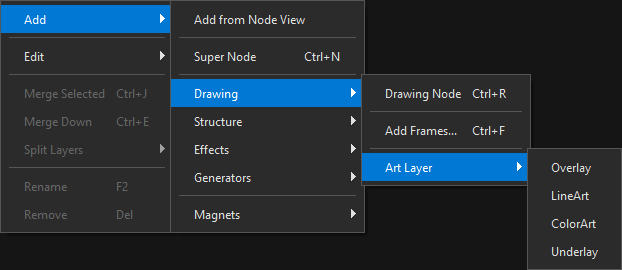
| Item | Shortcut | Creates |
|---|---|---|
| Drawing Node | Ctrl+R | an empty drawing container |
| Add Frames… | Ctrl+F | the Add Frames dialog |
| Art Layer → | Overlay, LineArt, ColorArt, Underlay |
The four art layers are listed top to bottom as Harmony stacks them — Overlay first, Underlay last — not alphabetically. See Art Layers.
Add → Structure
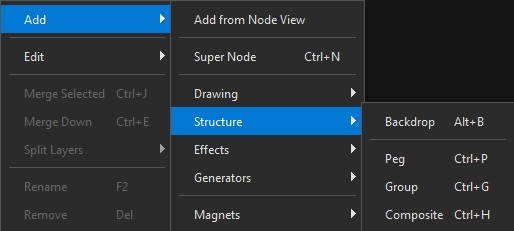
| Item | Shortcut |
|---|---|
| Backdrop | Alt+B |
| Peg | Ctrl+P |
| Group | Ctrl+G |
| Composite | Ctrl+H |
Add → Effects
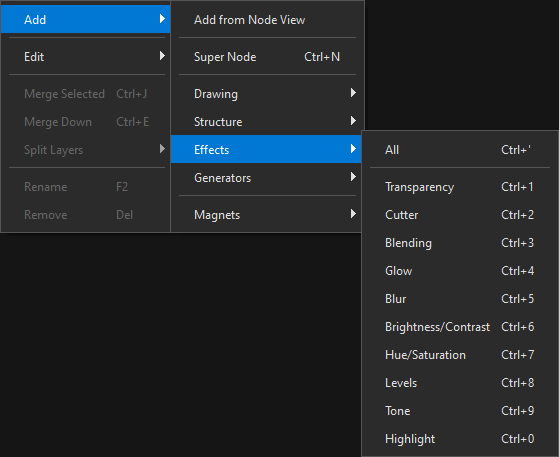
All comes first, then a separator, then the ten effects.
The separator marks a change of verb, not a change of category: All creates one node carrying every effect, while the lines below it each create a node with one. There is no second separator inside the list — the ten effects are ten effects.
| Item | Shortcut |
|---|---|
| All | Ctrl+' |
| Transparency | Ctrl+1 |
| Cutter | Ctrl+2 |
| Blending | Ctrl+3 |
| Glow | Ctrl+4 |
| Blur | Ctrl+5 |
| Brightness/Contrast | Ctrl+6 |
| Hue/Saturation | Ctrl+7 |
| Levels | Ctrl+8 |
| Tone | Ctrl+9 |
| Highlight | Ctrl+0 |
Add → Generators
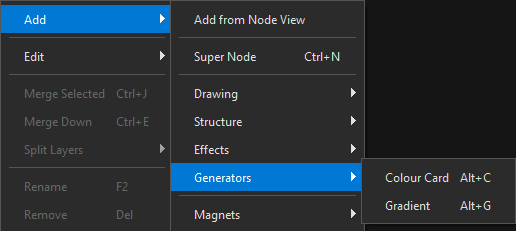
| Item | Shortcut |
|---|---|
| Colour Card | Alt+C |
| Gradient | Alt+G |
Add → Magnets
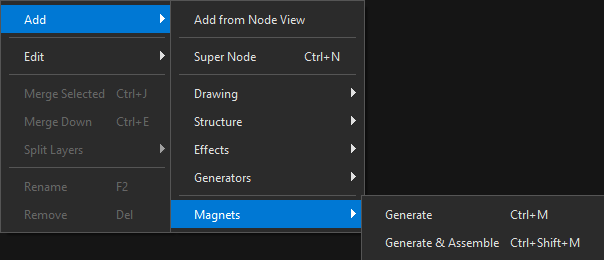
| Item | Shortcut | Does |
|---|---|---|
| Generate | Ctrl+M | one slot per active magnet, in staging |
| Generate & Assemble | Ctrl+Shift+M | the same, then straight into the Node View |
Edit
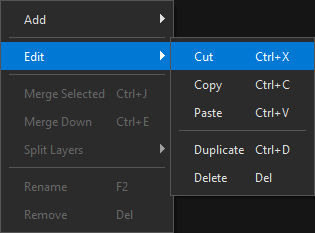
| Item | Shortcut |
|---|---|
| Cut | Ctrl+X |
| Copy | Ctrl+C |
| Paste | Ctrl+V |
| Duplicate | Ctrl+D |
| Delete | Del |
Merge and Split
| Item | Shortcut | Page |
|---|---|---|
| Merge Selected | Ctrl+J | Split & Merge |
| Merge Down | Ctrl+E | |
| Split Layers → As Hierarchical | Ctrl+B | |
| Split Layers → As Siblings | Ctrl+Shift+B |
Rename and Remove
| Item | Shortcut |
|---|---|
| Rename | F2 |
| Remove | Del |
Renaming here changes the plan, not the file on disk. Renaming a slot renames every component it builds — Can becomes Ship, and so do Ship-P, Ship-G and Ship-C, unless a name was explicitly unlinked.
Greyed-out entries
A disabled entry is disabled for a reason, and OSA's rule is that the reason is always available: hover it and the tooltip says what is missing.
Merge Selected greys out below two nodes. Split Layers greys out on a row with nothing to split. Frame-level merge and split grey out with Split/Merge Frames off — and there the feedback bar names the checkbox.
Icons in menus
The art layer entries carry their layer colours, and the effect entries their names only. Icons in a context menu are for the things you recognise by shape — the four art layers — rather than for decorating every line.