Conversions & Drag Conversion
Every row in OSA is the same object, but not every row is allowed to do the same things — because Harmony's own model has shapes it does not have. This page is about those limits, how the Inspector shows them, and how you get out of one.
The Inspector changes shape
Select a frame, an art layer or a subart layer and most of the Inspector disappears:
| Section | Drawing container | Frame | Art layer / Subart | Frames folder | Template |
|---|---|---|---|---|---|
| Item Properties | ✅ | ✅ | ✅ | name locked | name locked |
| Content Nodes | ✅ full | ✅ artwork fields only | ✅ artwork fields only | ❌ | ❌ |
| Hierarchy Nodes | ✅ | ❌ | ❌ | ❌ | ❌ |
| Effects Nodes | ✅ | ❌ | ❌ | ❌ | ❌ |
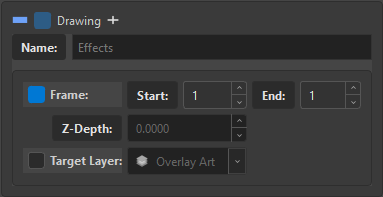
Nothing is greyed out and left there to tease you — it is hidden, because it is not a setting this row will ever have.
Why: a frame is an exposed cel inside an element. There is no peg on a cel, no composite on a cel, no glow on a cel. The peg belongs to the drawing node above the frame; that is the row where those blocks live and the row where you set them.
The same holds one level further down: an art layer is a layer inside the drawing, and a subart layer is one image in that layer's stack. Neither is a node in the Node View, so neither has node properties.
Hidden, not disabled
A disabled control says "you could have this, just not now". These sections are hidden because the answer is "never, on this kind of row" — and OSA's rule is that a greyed control without a reason is a bug, so it does not grey what it cannot explain.
What each kind can hold
The parenting rules are enforced on every drop, and the refusal always names itself:
| Child | Allowed parent | Refusal you'll see |
|---|---|---|
| Frame | the Frames folder | Frames must be in a Frames Folder |
| Frame in a Frame | — | BLOCKER: Frame inside Frame (Must be ArtLayer) |
| Frames folder | a drawing container | Frames Folder must be a child of a Drawing Container |
| Art layer | a frame | Art Layers must be children of a Frame |
| Subart layer | an art layer or another subart | Sub-ArtLayers must be children of an ArtLayer |
| Drawing container | anywhere except inside a frame, art layer or Frames folder | Drawings cannot be inside Frames/Content nodes |
| Peg / Group / Composite / Backdrop | anywhere except inside content nodes | … cannot be inside content nodes |
Template (.tpl) |
anywhere except frames and art layers | TPL Files cannot be inside Frames or Art Layers |
Freeing a frame
A frame is a locked-down row: no peg, no effects, and its children can only be art layers. When you need it to be more than that, turn it back into a drawing.
Untick Frame in the Inspector. What happens:
- The frame numbers are remembered (
Start,End, the number) so ticking Frame again restores them exactly. - The row becomes a drawing container — Hierarchy Nodes and Effects Nodes reappear.
- A Frames folder is created inside it.
- Any art layers or subart layers it had are moved into that Frames folder.
That last step is the interesting one, and it is the answer to "how do I turn artwork into a frame?":
Converting a frame into a drawing frees its artwork to become frames.
The art layers that were locked inside the frame are now sitting in a Frames folder, which is exactly where frames live. From there, each one can become a frame in its own right.
Tick Frame again and the reverse happens: the Frames folder is removed, its children move back up, and the remembered numbers come back.
Art layer → frame, and the promotion that follows
Untick Target Layer on an art layer and it converts into a frame:
- The art-layer type is cleared.
- The row takes the next available frame number — no collision with existing exposures.
- Its subart layers are promoted to art layers, inheriting the type the parent had.
That third step is the part worth memorising. A subart layer is "one image in an art layer's stack" — the moment its parent stops being an art layer, that description is meaningless. So the children become art layers themselves, and keep the type their parent was carrying, recursively all the way down.
The reverse of the whole thing: drop a frame onto another frame or onto an art layer with Drag Conversion on, and it becomes an art layer again — restoring the type it had before, or LA if it never had one.
The type is stashed, not lost
When a conversion drops an art-layer type, OSA keeps it. Convert back and the original layer returns instead of everything collapsing to Line Art.
Drag Conversion
The Drag Conversion checkbox in the Browser's Settings section decides what a drop means. It is off by default.
-
Off — Strict Mode
An invalid drop is refused, and the message names the checkbox that would allow it:
Strict Mode: Cannot nest Frames. Enable 'Allow Drag Conversion'.
Your tree only ever contains shapes you asked for.
-
On — Conversion
The dropped row becomes what the target requires, and OSA says what it did:
Converted ArtLayer to Frame
Fast, and the fastest way to restructure a tree that arrived wrong.
What converts into what
| Drag | Onto | With Drag Conversion on |
|---|---|---|
| Art layer / subart | a Frames folder or a drawing container | becomes a frame, gets the next free number, and its subart layers are promoted to art layers |
| Frame | another frame or an art layer | becomes an art layer, restoring its stashed type (or LA) |
What is refused either way
Two drops are invalid no matter how the checkbox is set, because there is no sensible thing they could convert into:
- a frame into a subart layer,
- an art layer into a subart layer.
Choosing a mode
| Use Strict when | Use Conversion when |
|---|---|
| You are placing artwork and want mistakes refused | You are restructuring a tree that came in wrong |
| The tree's shape is already right | You want a drop to mean "become this" |
| You are working fast in a deep tree | You are reorganising art layers between frames |
Both are safe with respect to your artwork: nothing is discarded because the hierarchy changed. What changes is whether an unusual drop is a refusal or a conversion.
See Concepts for which rows hold artwork, and Split & Merge for the verbs that restructure without dragging.