Magnets
A magnet is a named destination that catches folders by name.
Define a magnet called PROPS; from then on, any folder called PROPS — or props, or PROPS_v03, or one of the aliases you gave it — lands under your PROPS branch when you drag it in, however deep it was buried in the delivery.
 active ·
  inactive
Why they exist
A delivery folder does not arrive sorted. It arrives as whatever the layout artist's file structure happened to be, and the same four or five destinations show up in every scene of the show: background, characters, props, effects.
Magnets are how you say those destinations once and stop dragging.
Creating one
In the Browser's Magnets section, press +:
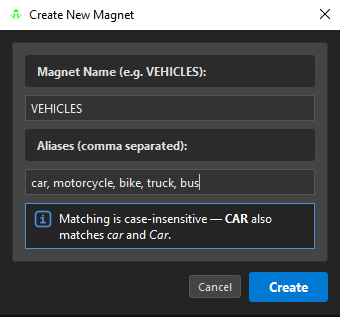
| Field | What it does |
|---|---|
| Magnet Name | the destination, and the branch's name — e.g. VEHICLES |
| Aliases | comma-separated alternatives that route to the same place — cars, bus, truck, motorcycle |
Matching is case-insensitive. CAR also matches car and Car, and the dialog says so rather than making you find out.
How matching works
A folder name is tested three ways, and the longest candidate wins:
- Exact —
PROPSmatches the magnetPROPS - Prefix —
PROPS_v03matchesPROPS - Suffix —
KOG_PROPSmatchesPROPS
Longest-first matters: with magnets BACK and BACKGROUND both defined, a folder called BACKGROUND goes to BACKGROUND, not to BACK.
Aliases are matched exactly like main keys, and both resolve to the main keyword — so truck lands in VEHICLES, under the name VEHICLES.
Active and inactive
Each magnet has an on/off state, and the funnel button  in the Magnets header filters the list.
An inactive magnet still exists, still remembers its aliases, and simply does not catch anything. Turn one off for a scene that has no props rather than deleting it and re-typing the aliases next week.
A folder that matches an inactive magnet comes in as a plain folder
Nothing is lost — but nothing is routed either. OSA says so at import time ("PROPS magnet is off: 'PROPS' came in as a plain folder, nothing was routed"), because a silent non-routing looks exactly like a magnet that doesn't work.
Editing and removing
Right-click a magnet → Edit Item… to change its name or aliases. Renaming a magnet renames the destination; the aliases follow.
− removes the selected magnet. Removing does not touch anything already staged — the branch stays where it is, it just stops being a target.
Generating the tree from magnets
Two buttons in the Staging toolbar build the destinations for you, in one press:
| Button | Does | |
|---|---|---|
 |
Generate Magnet Tree | creates one slot per active magnet, in the staging tree only |
 |
Generate + Assemble | the same, and then assembles straight into the Node View |
Each generated slot arrives as a proper super node — (Backdrop > Peg > Comp) — because that is what a destination branch needs to be:
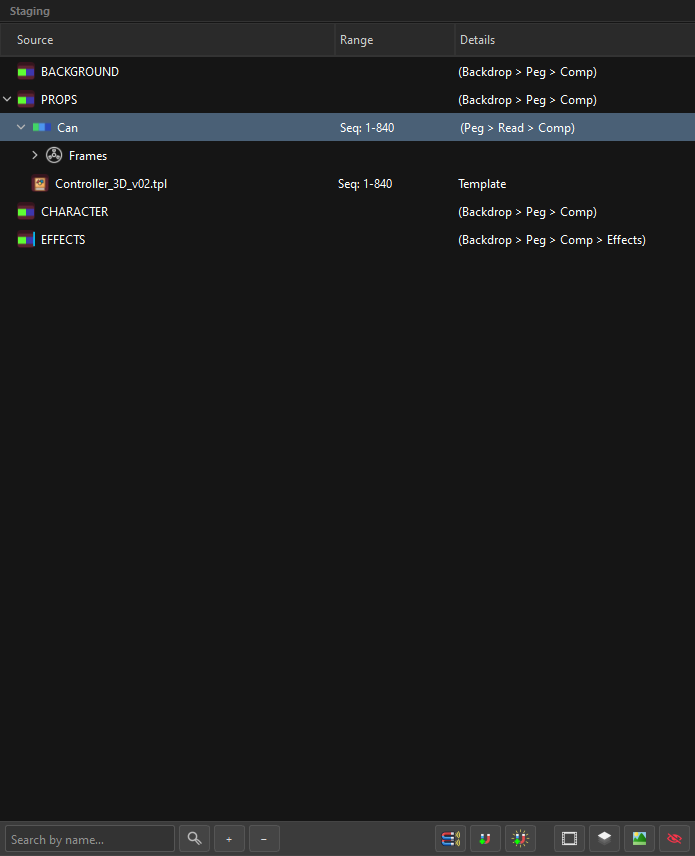
Use Generate when you are about to drag artwork in and want the destinations waiting. Use Generate + Assemble when you want the empty structure to exist in Harmony right now — for a layout artist to start from, for example.
It works standalone, and the recipe is the preset's
Generate + Assemble needs no artwork and no staging. Open OSA on an empty scene, press it, and you get the whole destination hierarchy built in the Node View — pegs, groups, composites, backdrops with their colours, and any effects the recipe asks for. That is the fastest way to hand a rigged, empty scene to whoever starts the shot.
And what it builds is not hard-coded: it is the Magnet Generator recipe of the Preference Set that is active right now.
| Lives in the preset | So switching sets changes |
|---|---|
| which magnets exist | the destinations |
| which ones are active | which destinations get built |
| their order | the order they are created in |
| each one's generator recipe | the components and effects each destination is born with |
| the backdrop colour per magnet | how the Node View reads at a glance |
So a show whose backgrounds need a Blur on the destination and a show whose don't are two Preference Sets, not two workflows. Check the Preference Set combo in the top bar before pressing the button — it is the whole configuration of what you are about to build.
The factory Standard set, for reference: BACKGROUND, PROPS and CHARACTER are born Backdrop > Peg > Comp (in blue, green and orange), and EFFECTS is born the same plus a Transparency, a Glow and a Blur, in purple.
Editing the recipes: Preferences → Magnet Generator.
Magnetize Scene (Vacuum)
 Magnetize Scene works in the opposite direction: it reads the existing Harmony scene through the magnets, and stages what it finds.
It already ran — OSA magnetizes on open
You do not have to press this button to get started. Every time the OSA window opens it magnetizes the scene by itself, so the tree you are looking at is already the current scene read through your magnets.
That is why re-opening OSA on a scene you assembled yesterday shows it back, and why the button is there for the second time: you changed something in the Node View, or edited your magnets, and want the tree refreshed against the scene as it is now.
The order matters and is deliberate: the automatic vacuum runs first, and only then does OSA offer to restore a saved session. The session was recorded with the vacuum's result already inside it, so the offer is made with more information, not less — and you are never left staring at an empty window waiting to decide.
That is how you pick up a scene somebody else built, or one you assembled yesterday, and go on working on it in OSA — the nodes already in the Node View are matched against your magnets and come back as slots.
The feedback line tells you exactly what it found:
Vacuum: 4 candidate(s) with magnets ['BACKGROUND', 'CHARACTER', 'EFFECTS', 'PROPS']
If the scene cannot be read at all (no Harmony session, for example), that is reported as its own distinct message — "the scene has nothing" and "the bridge never opened" are different problems and OSA refuses to show you the same screen for both.