Knobs
A knob is a pose layer being used as an axis instead of as a pose set.
A knob is a role, not a type. Any pose layer can become one: point another layer's Knob picker at it, or drag a layer onto it in the Outliner.
Becoming an axis changes what it is, not what it can do with its own poses:
| It keeps | It gives up |
|---|---|
| Its grid, and the right to edit it | Pairs — a knob has no L/R twin |
| Its target list | Pages — a knob is a single page |
| Its own authored poses |
A knob is solo, single-page, always. That is the whole cost.
So making a paired layer into a knob has to collapse it first, and ORC will not do that behind your back. A layer with more than one grid and any frames on it is refused:
"Mouth" has authored frames on its extra grids — a knob is a single solo grid. Collapse it to one grid first.
Collapse it to a single solo grid yourself and it goes through. A layer whose extra grids are empty is collapsed silently.
What collapsing actually costs you
Not the frames. Every page and every side of a layer share one frame per snap — you author on one grid and ORC writes it to all of them — so the poses survive the collapse.
What a solo layer cannot express is sides: which target is driven by which grid. That routing is what you give up.
Mirror decides where the twin frame lands
The copy onto the twin grid is not a straight copy — the snap is flipped through the layer's mirror axes. Authoring R0C0 on the left with Mirror X on writes the right grid's R0C6, not its R0C0.
So the mirror axes in force when you author are baked into where those frames sit, and changing the axes later does not re-map keys you already made. Collapse a mirrored layer, turn Mirror X off, re-pair it, and new authoring will land on different snaps than the old.
None of that makes it a mistake — flipping an axis is also how you deliberately reverse which way the twin reads. It is only a surprise when you do not expect it.
The rule of thumb: on an empty layer, change it freely. On an authored one, expect the old keys to stay where they are and decide whether you want to re-key them.
Assigning a layer as a control face carries the same guard, for the same reason.
What it buys you
Say your mouth layer has a 3 × 3 grid of corner shapes. Now give it a 13-position phoneme knob.
The mouth layer does not gain 13 poses. It gains a whole 3 × 3 grid per phoneme — 117 poses, addressed as "this corner shape, at this phoneme."
That is what "keying across" means, and it is the same relationship a layer has with its control — just one level further in.
The two kinds
Both author. Both have targets. What separates them is which key domain their own poses live in — and therefore what the Navigator offers you while you author them.
| A control's knob | An extra knob | |
|---|---|---|
| What points at it | A control's face | An ordinary pose layer |
| What it moves | The control's whole pose grid — the turnaround itself | Only the layer that points at it |
| Its own poses are keyed across | Its own axis alone | Its own axis and the control's grid |
| The Navigator gives it | No control grid | The control's grid |
The reason is not a rule, it is arithmetic. A control's knob is one of the control's dimensions — the control already keys through it, so adding the control's grid on top would count the same axis twice. ORC says so when you select one:
This knob authors its own dimensions. The control's grid adds no axis here — the control already keys through this knob.
An extra knob sits inside the control as a child, so it does get the head grid, and its poses vary per control pose like any other layer's.
A control's Front and Back faces share one knob — setting it on one sets it on the other.
Giving a layer a knob
Two ways, both equivalent:
- Select the layer and pick a layer in the
Knobcombo in its header. - Drag one layer onto another in the Outliner. The tooltip names the layer you dropped onto and says exactly what will happen — drop onto a layer called
Head Knoband it reads "Key across «Head Knob» (it becomes a knob)".
The combo's tooltip is the short version of this page:
The KNOB this layer keys across — its extra control axis (a phoneme/expression grid, the W slider…). Pick a layer to make it this layer's knob (or drag a layer onto another in the outliner). THIS layer's targets stay here; the knob keeps its own grid, targets and poses, but becomes solo and single-page.
The consumer's targets stay on the consumer
Whatever the combination drives is listed on the layer that points at the knob, not on the knob. The knob's own target list is separate, and drives whatever that knob poses itself.
A layer that already has poses keeps them — at position 0
Adopting a knob re-homes the layer's existing keys onto the knob's first position: position 0 shows exactly what the layer showed before, and every other position starts empty, ready to author. (Compose already read them that way — the move just makes the editor agree.)
To remove a knob, set the picker back to —.
What a knob can and cannot be
One knob per layer. The picker is a single combo, and picking a new one replaces the old.
ORC refuses the wiring that would not make sense, each time with the reason in the feedback bar:
| Refusal | Why |
|---|---|
| "Can't — that would cycle the dimensions." | A knob cannot key across something that keys across it. |
| ""Eyebrows" belongs to "Head" — a layer only keys across knobs of its OWN control. Make the knob global to share it." | Control exclusivity. To share an axis between controls, make it global. |
| ""Mouth" has authored frames on its extra grids — a knob is a single solo grid. Collapse it to one grid first." | A knob is one grid. Pages and pairs are a pose concept. |
On success you get the green confirmation: ""Mouth Corners" now keys across "Head Knob" (it's now an axis)."
A knob is terminal. A knob does not itself get a knob picker — the row hides it. Chains of knobs are not part of the model.
Editing a knob
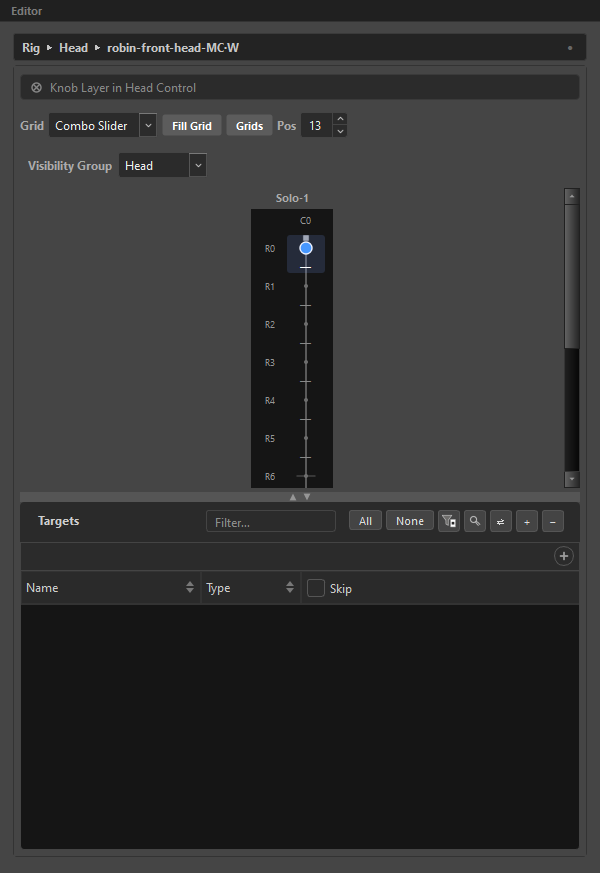
Selecting a knob gives you the ordinary pose-layer page: an editable grid, a target list, its own frames. The header names its role — Knob Layer in Head Control — and the Navigator drops the control grid for a control's knob, per the table above.
Everything you can do to a layer you can do here: change its shape and Pos count, add targets, key poses, set its visibility group.
Reshaping a knob renumbers its consumers
Changing a knob's shape re-addresses every key the layers riding it hold, so each authored position keeps the snap you put it on. ORC reports what it did: "Knob reshaped — 84 key(s) renumbered to the new grid."
1-D and 2-D knobs
| Shape | Widget in the composed rig |
|---|---|
| A slider | A slider — a bar the animator drags through N positions |
| A grid | A second 2-D widget |
A 2-D knob costs two dimensions instead of one. That is the difference between a 5D layer and a 6D one.
Filling across a knob
Once a layer has a knob, Fill Dimensions appears in its header. It copies that layer's authored frames across every position of the knob, with a frame offset per position — the fastest way to rough in a knob axis before refining it.
See Fill Grid & Fill Dimensions.
The cost
Every knob position multiplies the poses you may author, the time Compose takes, and the memory it uses.
| Rig | Poses |
|---|---|
| A 3 × 3 layer, global | 9 |
| …inside a 5 × 3 control | 135 |
| …with a 13-position knob | 1,755 |
| …with a 3 × 3 knob instead | 1,215 |
You never have to key them all — an unkeyed snap simply blends from its neighbours. But every knob you add is a decision about how much authoring the rig will ask for.
Related
- Dimensions & Key Domains — how the axes add up
- Pose Layers — what a knob is made from
- Fill Grid & Fill Dimensions
- Grid Presets — shapes worth reusing