Constraints
A constraint links transform channels between nodes, and can be switched on and off.
Two kinds, and that is the whole vocabulary:
| Type | What it does |
|---|---|
Copy |
The targets follow a source peg on the channels you pick |
Lock |
The targets are frozen in place on those channels |
Add one with + → Constraint. It goes straight into its editor.
How it actually works
ORC does not write expressions. It uses Harmony's own column sharing: switching a constraint on links the target's attribute to the source's column, so moving either side moves both — natively, with no evaluation cost and no expression to debug.
Switching it off unlinks them, and the targets become statically editable again.
Turning it off preserves what you did while it was off
ORC remembers the column each target had at the last time the constraint was on, and restores that first. Failing that, it falls back to the column it found at Compose. Keys you made in between are kept.
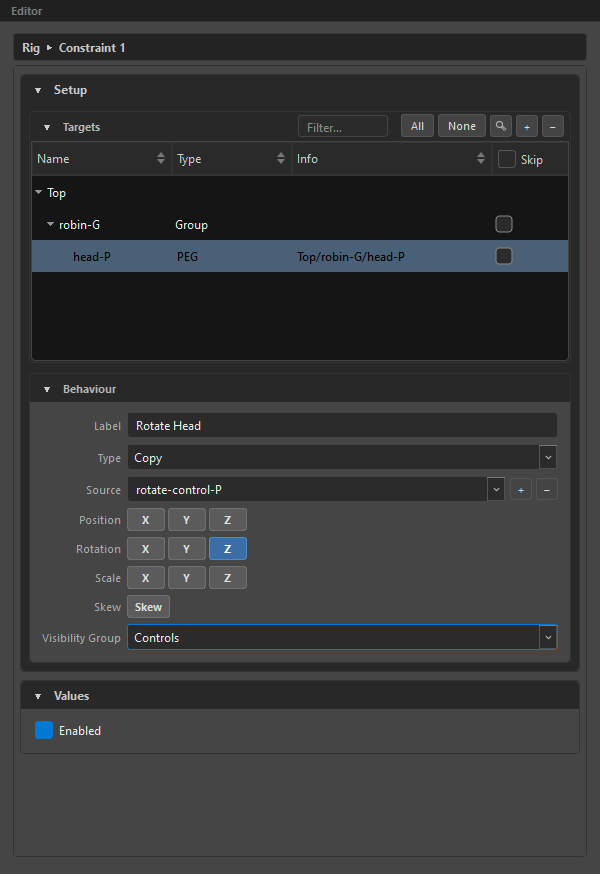
Setup
Targets
The nodes the constraint acts on. Add them from the Node View with +.
Only plain Harmony nodes here — a constraint has no internal targets.
Behaviour
| Field | What it does |
|---|---|
Label |
The name the animator sees. |
Type |
Copy or Lock. |
Source |
The peg to follow. Copy only. |
Position / Rotation / Scale |
Three toggle buttons each — X, Y, Z. |
Skew |
One toggle. |
Visibility Group |
Where the on/off checkbox lives. |
Picking a source with + reads it from your Harmony selection and auto-checks the channels it finds animated — a convenience, not a lock; you can still toggle any of them.
Under Lock the whole Source row is disabled:
Lock freezes the targets' own channels in place — there is no source node to read from. Switch Type to Copy to follow a source peg.
Channels
The ten channels are POSITION.X/Y/Z, ROTATION.ANGLEX/Y/Z, SCALE.X/Y/Z and SKEW. A checked channel is filled blue.
A constraint needs at least one channel
Turning off the last one is refused — the button flashes amber and the feedback bar says:
A constraint needs at least one channel — turn another on before clearing this one.
Without it, the constraint would compose into a silent no-op.
Values
A single Enabled / Disabled checkbox. That is the entire runtime interface.
The state at Compose is the state the composed rig is born with, and a re-compose re-stamps it.
Gating with a driver
A constraint has no scope and no per-snap keys — it is global. To make it change during a shot, hand it to a checkbox driver.
Right-click the Enabled checkbox:
| Item | Effect |
|---|---|
Add Driver ▸ |
Lists every checkbox driver in the rig |
+ New Driver… |
Creates one and gates on it |
Remove gate (Direct) |
Back to a plain manual toggle |
Once gated, the checkbox turns pink and becomes read-only — you drive it through the driver now. Right-clicking still works, so you can change or remove the gate.
The tooltip tells you which one owns it:
Driven by "Arm IK" — toggle it via that driver, or right-click here to change the gate.
If that driver later stops being a checkbox, the gate is kept and marked rather than silently dropped:
Driven by "Arm IK" — but that driver is no longer a Checkbox, so it cannot turn this on/off. Set it back to Checkbox, or right-click here to remove the gate.
Setting it back to Checkbox restores the gate. A gate on a deleted driver falls back to no gate.
Where constraints live
Constraints are global-only. In the Outliner they are always direct children of Rig, they show — in the Dimensions column, and they cannot be dragged elsewhere. There is no scope to choose because there is no per-snap value to key.
Muting
Right-click in the Outliner → Mute: "Skip this constraint at compose without deleting it (dimmed in the outliner)." The row dims and Compose ignores it.
Deform chains
If a target is a drawing or a peg inside a deformation chain, ORC resolves it up to the chain's group for you — you do not have to hunt for the right node in the Node View.
Related
- Drivers — the checkbox that gates it
- Visibility Groups — where the toggle appears
- The Outliner — where constraints sit