Visual Indicators
ORC says a lot with very little colour. This page is the whole vocabulary.
The governing rule: colour is scarce on purpose. The Outliner has exactly four colour states, grids have one green, and information that is merely interesting is deliberately left grey.
Green means "the active node has a key here"
One green, everywhere, for every kind of key — a pose frame, a driver value, a constraint state, a look-at key.
| Where | Looks like |
|---|---|
| A grid snap | |
| A slider tick | |
| A slider handle | The handle turns green on a keyed position, and the groove tints with it |
| A field label | Green text |
| Every visible grid's cursor, briefly | A green flash — a key was just recorded |
A navigator shows one node's keys, which is why one colour is enough.
Green is always about the active node
On a driver's page the pose green is suppressed at source and replaced by that driver's keys. Otherwise a rig that keys every snap would light up completely and tell you nothing.
A pinned navigator shows frame numbers but no green — it is a reference, and it has no business claiming your keys.
The other grid marks
| Mark | Meaning |
|---|---|
| An empty snap | |
| A back face's side snap, inherited from the front via Share Sides. Visible and clickable, but not editable. | |
| Modified — this snap's frame has changed since the rig was brought in | |
| Removed — empty, but the reference has a frame here that was deleted. Without the ring this would read identical to a snap the import always had empty | |
— |
No frame here |
The cursor is the only dot with a border, and it carries two facts at once — its fill is the snap's state, its border is whether the snap is modified:
| Cursor | Means |
|---|---|
| An unkeyed snap | |
| A keyed snap | |
| …and the snap is modified | |
| An unkeyed snap that is removed — empty under the cursor, yellow because the reference has a frame here |
Modified is a ring or a border, never a fill, because it is orthogonal to whether the snap is keyed. On the cursor the yellow replaces the white rather than adding a second ring.
The same three marks appear in the Navigator, so divergence is visible while you navigate and not only while you author. On its slider the ring has nowhere to go — a tick is a 2-pixel line — so the mark becomes a split: the tick's head goes yellow, its body keeps the keyed colour, and the handle parked on it takes a yellow ring.
The two surfaces answer different questions, and the mark's scope follows:
- On the Editor's authoring grid — where you fix a frame — yellow is exact and per page: this snap's frame diverged, on this page. The grid you see is one page of the layer's whole stack (one head snap × one knob position), so the ring shows only while you are parked on the page that diverged. Navigate the head or the knob away and it goes; come back and it is there.
- On a Navigator — where you choose a position — yellow rolls up: something addressed through here diverged. The control grid pins to the knob's current page too (the knob below it re-pages both at once), while the knob's ticks stay the wide-angle finder: a tick lights when its page holds any divergence, at any head snap.
Two rules keep those marks honest:
- The Navigator belongs to the selected layer. Its yellow shows that layer's divergence and nobody else's — click a clean pose layer and its navigator comes up clean, even when a sibling under the same control diverged. A driver or look-at page shows only its own values. What diverged is the layer that diverged, not its neighbours.
- Follow the trail inward. A knob tick lights → navigate to it and the control grid lights the head snap → click it and the authoring grid rings the exact cell. A yellow navigator mark is an arrow, not a verdict.
Yellow watches two kinds of number
A rig holds two kinds of authored number, and yellow watches both:
- Frames — which timeline frame a pose snap points at. This is what the marks above describe.
- Values — what a driver or a look-at holds at a snap. Re-open a composed rig, drag a driver's slider at one snap, and that snap goes yellow on the driver's own navigators — its pose-layer grid, its slider's tick head, its knob card — and on the control snap that addresses it. Look-at keys get the same treatment.
Re-keying the same value is not a change: divergence compares what it is against what it was, never whether you touched it. Set a driver back to exactly where it started and the yellow goes out.
Removing is a change too. Delete a pose the reference has — F7 on an imported or re-opened snap — and the emptied cell keeps the yellow ring (a small grey dot inside it), the slider tick goes empty with a yellow head, and the cursor parked there is blue with a yellow border. That ring is what separates "I deleted this" from "the import never had anything here" — an imported MC can legitimately carry empty cells, so absence alone says nothing. And because a removal is a divergence like any other, Restore brings the deleted pose back.
Two deliberate absences. Constraints never mark — a constraint is a global on/off with no per-snap value, so there is nothing to diverge. And an imported Harmony MC has no driver or look-at values to have changed — those are ORC concepts that exist only once ORC composes them — so value yellow appears only on a re-opened ORC rig.
What yellow is really for
Half of it is what it says: this no longer matches what I brought in, so you can tell your own work apart from the MC you started from.
The other half is a safety net, and it is the half that earns the colour. A frame number is a small thing to change by accident — a stray drag on a snap, a mistyped digit, a fill that reached one row further than you meant. Nothing about the rig looks wrong afterwards: the pose still has a frame, the dot is still green, and the grid still reads as finished. Without a mark, the first time you would find out is after composing, in Harmony, watching a pose land on the wrong drawing — long after you remember doing it.
Yellow closes that gap. It says "this one is not where it started" at the moment it stops being where it started, on the snap, in the layer's name, and on the navigator you are already looking at. Most of the time it is confirming a change you meant. The one time it is not, you find out in seconds instead of after a compose.
Every yellow has an inverse — Restore
The mark is also the way back. Right-click any surface that shows divergence and a Restore Reference entry puts the baseline back over exactly what that mark covers — the same scope, nothing more:
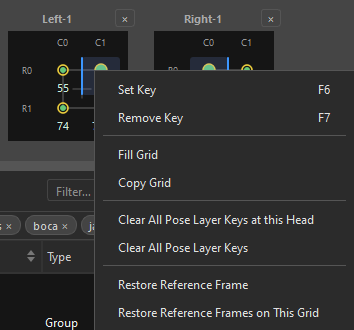
- Editor grid —
Restore Reference Framereverts the clicked snap on the current page;Restore Reference Frames on This Gridreverts every diverged snap of the page. - Navigator control grid —
Restore Reference Pose Herereverts everything the selected snap addresses for the selected layer, on its current knob page: frames, and for a driver or look-at page, its diverged values at that snap. - Knob tick — reverts the selected layer's keys at that position.
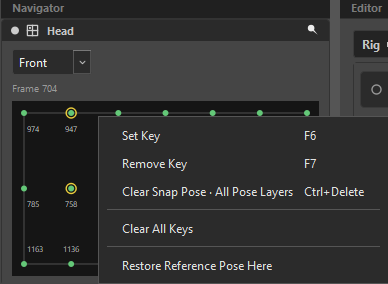
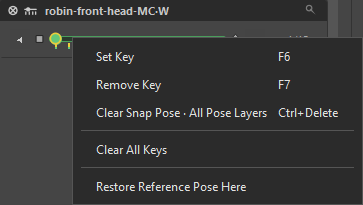
A retimed key gets its reference frame back. An added key — one the reference never had — is removed, captured pose included: restoring the original pose means the key goes back to not existing. A removed key — one you deleted that the reference has — is resurrected with its reference frame. Every restore is one undo step, and the status line reports the count.
The entries are always listed, greyed with the reason when they cannot act: no reference (the rig was authored from scratch — nothing imported or reopened to restore to) or nothing diverged here. The reference is the same one divergence compares against, whether it came from an imported Harmony MC or a re-opened ORC rig.
It covers any rig that came back from an MC — yours or Harmony's. The one gap is the very first session of a brand-new rig, which has no earlier version to differ from, so nothing is marked and nothing could be.
That is also why the mark is deliberately quiet — a thin ring, a tinted name — and never a warning dialog. Diverging is the normal, expected thing to do: you opened the rig precisely so you could change it. Yellow reports, it does not object.
The Outliner's colour
The dimension chip in the second column is grey. Red is the tree's only colour state:
| Colour | Meaning |
|---|---|
| Grey | Normal. |
| Red | A compose blocker. |
A blocked row is repainted whole — name, chip, both glyphs and the Σ — because it is the one state that stops a Compose: two extra knobs writing the same node and channel, which cannot sum.
Separately, a yellow name marks a layer that has diverged from its MC import.
Keyed, interpolated, driven
On drivers and look-at fields:
| Colour | State |
|---|---|
Green #64C878 |
Keyed at this snap |
Red #DC5050 |
Interpolated — blended from neighbouring keys |
Pink #E0608C |
Driven by another driver |
Keyed green wins over driven pink, and removing the key reveals the pink underneath.
A driven knob stays interactive — you can push it to preview; compose overwrites it from its source. A constraint gated by a driver goes pink and becomes read-only, but still answers a right-click.
Both the slider and its number box are painted, never just one.
Target list colours
One precedence, resolved in a single pass:
| Colour | Meaning |
|---|---|
| Red name + a red Σ | Conflict — two authors on one node and channel that cannot combine |
| Blue name | Additive — this target is added onto another author. A trailing Σ marks the one doing the adding. |
| Yellow name | Modified — added since the rig was brought in |
| Red + strike-through | A deactivated channel, mirroring Harmony's own look |
| Dimmed number | An inherited weight or side. Solid means set here. |
Overlap tints
The severity follows the blend, not the mere fact of overlapping:
| Tint | Blend | Meaning |
|---|---|---|
| Blue | Additive | The two coexist — one is an offset, and zero means no change |
| Yellow | Override | One silently replaces the other |
Trailing glyphs
Drawn after the dimension chip, at the right of the second column.
| Glyph | Meaning |
|---|---|
| A control has both a Front and a Back face | |
| A layer has L/R mirror pairs. Two or more add a small raised count. | |
| Σ | Composes additively — its keys are deltas, not absolutes |
The mirror glyph and Σ share one slot, and Σ always wins.
Pins
| Glyph | State |
|---|---|
| Filled white push-pin | Pinned |
| Hollow, dimmer | Not pinned |
Only controls, pose layers and knobs have navigators, so only they carry a pin.
The feedback bar
Messages stack in a fixed order, so a warning never hides a confirmation:
| Colour | Means | Typical |
|---|---|---|
| Neutral | Information | "Cleared 84 snap(s)" |
| Blue | An offer or a status | "Saved session found — Front: robin-head-MC" |
| Green | Success | "Compose complete — Top/robin-head-MC" |
| Yellow | A refusal you can act on, or an armed confirm | "Click − again within 5s to confirm removal." |
| Red | An error | "Nothing to undo" |
Two-click confirmations
Several buttons arm rather than acting immediately. An armed button turns amber and the feedback bar spells out the consequence; letting the timer run out disarms it.
| Where | Guarding |
|---|---|
| Deleting a node with data | Losing keyed poses |
| Overwriting a preset | Losing the saved layout |
| Compose, when warnings exist | CONFIRM? |
| Cancel, during Compose or Unroll | Aborting mid-write |
| Applying a grid preset over keys | Replace 9 key(s)? |
| The Widget Editor's Cancel | Discarding unapplied edits |
| Replace / Add in the preset prompt | Discarding authored poses |
A confirmation only fires when there is something to lose. On a rig with nothing keyed, deletion is immediate — a confirmation that always fires is a speed bump, not a safety net.
Greyed, never hidden
When something cannot be used, ORC greys it and puts the way out in the tooltip rather than removing it:
Pick a control first — Globals has no control grid to key across.
Front and Back have different row counts — the side columns can't align to share. Match their rows to enable Share Sides.
Flip Sides — this layer has no L/R pair (solo grids have no sides to flip).
A disabled Compose button's tooltip is always the reason it is disabled. The same is true of a disabled Paste, a greyed scope, and a locked Unroll.
If something looks unavailable and you cannot tell why, hover it.
Icons
Every Outliner row is a role glyph plus a type glyph. The full tables are in The Outliner Tree, but the rule worth memorising is:
The interior lines are the snap stops. A continuous widget type is drawn as exactly its discrete twin, minus the lines.