Pose Presets
A pose preset saves a whole rig configuration so you can apply it to another character — or back onto this one after a change.
Open it with 📋 Poses in the top bar.
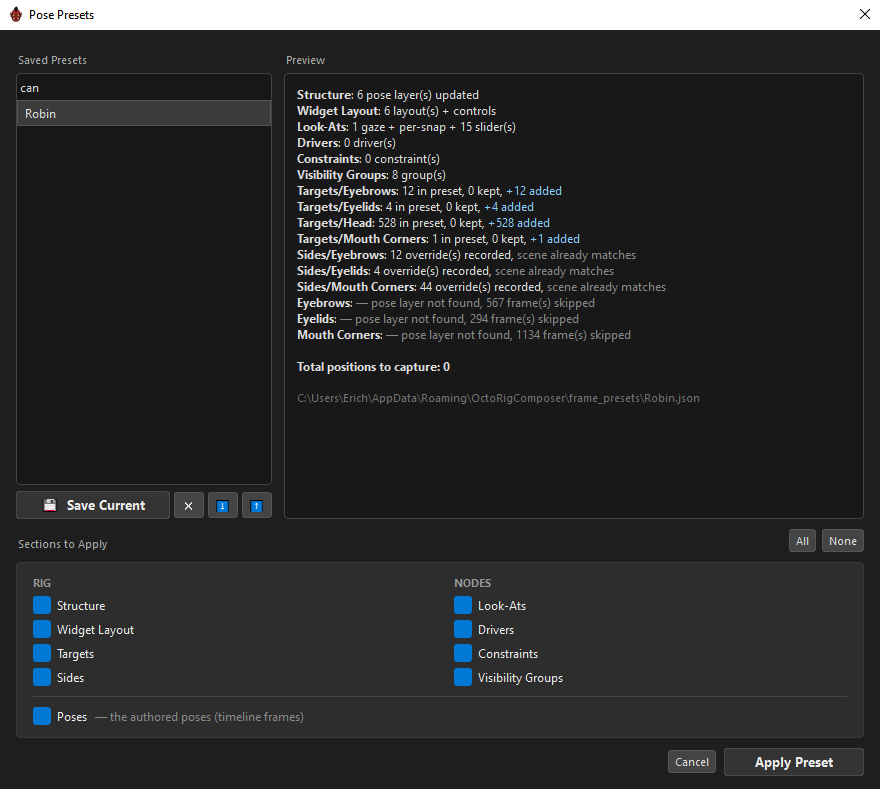
A preset is not one thing
This is the idea that makes the feature work: a preset is nine independent sections, and you choose which ones to save and which to apply. Applying Targets without Poses is a normal, useful thing to do.
The sections are named in the Outliner's own vocabulary, and grouped the same way.
RIG
| Section | Captures |
|---|---|
Structure |
The skeleton — every layer's grid dimensions, slider positions, custom row and column spacing, which knob each layer keys across, the magnet keywords, the controls, and the imported-MC wiring. |
Widget Layout |
Where everything sits on the canvas — every widget's position, scale, colours, labels, the Widget Editor's folders, its padlocks and guides, and the per-control geometry. |
Targets |
Identity only — which nodes each layer drives, and their deform chain structure. Deliberately no poses. |
Sides |
Every side assignment that differs from the inherited default, down to individual curves. |
NODES
| Section | Captures |
|---|---|
Look-Ats |
Every look-at, its per-snap gaze keys, and its overlay sliders. |
Drivers |
Every driver with its options and its per-snap value tables. |
Constraints |
Every constraint with its channels and per-snap states. |
Visibility Groups |
The whole group hierarchy. |
And separately
| Section | Captures |
|---|---|
Poses |
— the authored poses (timeline frames) — the frame each snap points at. |
Poses sits alone at the bottom because it is the section most often not wanted: it is the one thing that is specific to a particular character's timeline.
Sections require each other
Everything needs Structure — there is nowhere to put a driver without layers. Sides and Poses need Targets.
ORC enables prerequisites for you and says so: "Structure, Targets auto-enabled — required by the sections you picked."
Saving
💾 Save Current asks for a name, then opens Save — Sections to Include:
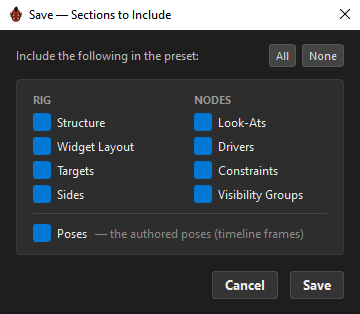
All nine start ticked. Cancelling this second dialog cancels the save.
The file is written to your preset folder under the name you typed, overwriting an existing one of the same name without asking.
The preview
Selecting a preset produces a dry run — everything that would happen, before anything does.
Structure: 6 pose layer(s) updated
Widget Layout: 6 layout(s) + controls
Look-Ats: 1 gaze + per-snap + 15 slider(s)
Drivers: 0 driver(s)
Constraints: 0 constraint(s)
Visibility Groups: 8 group(s)
Targets/Eyebrows: 12 in preset, 0 kept, +12 added
Sides/Eyebrows: 12 override(s) recorded, scene already matches
Eyebrows: — pose layer not found, 567 frame(s) skipped

Total positions to capture: 0
Read it as a diff. +12 added is new work; 0 kept means nothing survived; "pose layer not found" means the preset knows about a layer this rig does not have.
The full file path is printed at the bottom, because "where is this file?" otherwise has no answer in the UI.
How poses are matched
For each frame in the preset, ORC tries three things in order:
- Exact match — the same snap exists here. Applied.
- Broadcast — the control part of the address matches, but the layer part does not. The frame is written to every snap under that control pose. This is what lets a preset from a 3 × 3 rig land usefully on a 5 × 3 one.
- Well-formed anyway — the address is valid, so the snap is created.
Anything else is skipped and listed by name, so you can see exactly what did not fit.
Sections the preset does not have
A section missing from the file is disabled and unticked, with the reason:
The selected preset does not contain this section, so there is nothing to apply. Pick a preset that includes it, or re-save this one with the section ticked.
A preset saved in a much older frames-only format offers Poses alone, and says so.
Every time you select a preset, its available sections are re-ticked — each selection is a fresh question, not a memory of the last one.
Applying
Apply Preset applies the ticked sections, in an order that respects their dependencies: structure, then layout, then groups, then look-ats, targets, sides, drivers, constraints, and finally poses.
Each section is applied independently, so one failure does not abort the rest.
The whole apply is a single undo step.
While it runs, Cancel becomes Cancelling… and stops it at the next safe point. ORC also refuses to start an apply while a session restore is running, rather than interleaving two rebuilds.
Watch the dialog, not the rig — wait for 100%
A big apply takes a while, and it fills the rig as it goes: layers, grids and poses appear in ORC behind the dialog long before the work is done. That is progress, not completion — and it is easy to see a rig that looks finished and start clicking.
The dialog is the honest signal. Apply Preset reads Applying… and stays disabled for the whole run, and the progress bar runs to 100%. When the button says Apply Preset again, and only then, the apply is over.
Acting early is not a small risk: the apply is one undo step and rebuilds the rig in dependency order, so an edit landing mid-run meets a half-built rig.
Structure alone never moves a widget
Applying Structure without Widget Layout keeps your current layout exactly where it is — ORC snapshots it, applies the structure, and puts the layout back.
Likewise, applying Visibility Groups without Widget Layout keeps each group's current colours and position and takes only its structure.
Applying onto a rig that does not match
This is the normal case when you move a preset between characters, and it has its own page: Character & Config Presets.
The short version: ORC reconciles the preset's layers against yours, asks you what to do when it is ambiguous, and remaps the preset's data onto your keys so nothing lands beside your rig instead of on it.
Managing presets
💾 Save Current — the one labelled button — asks for a name and then the section picker; see Saving. The rest of the row is icon-only:
| Button | Notes |
|---|---|
✕ |
Deletes the selected preset. Confirms first. |
⬇️ |
Export to a .json file. |
⬆️ |
Import one. The filename becomes the preset name. |
Related
- Character & Config Presets — reusing across a cast
- Grid Presets — one layer's grid, not the whole rig
- Re-editing a Composed MC — the other way back in