Preferences
Open with the ⚙ button in the top bar. Two tabs — General and Keyboard Shortcuts — and three buttons at the bottom.
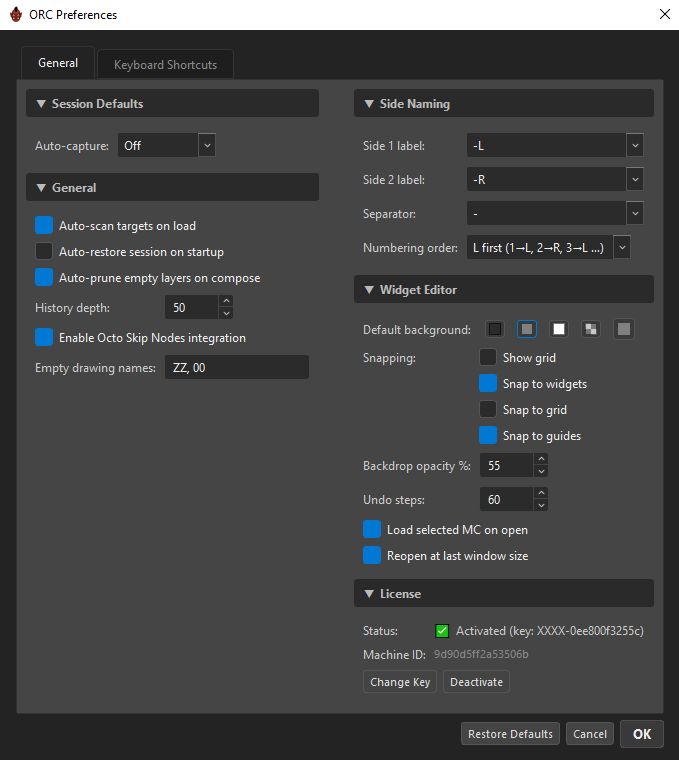
| Button | Effect |
|---|---|
Restore Defaults |
Resets every preference and every keyboard binding. Takes effect in the dialog immediately, but still needs OK to be written. |
Cancel |
Nothing is saved. |
OK |
Saves and applies. |
Each section header is collapsible — click the ▼ / ▶.
Session Defaults
| Setting | Values | Default | What it does |
|---|---|---|---|
| Auto-capture | Off, On |
Off |
The state the auto-capture dot starts in each session. See Keying & Auto-Capture. |
General
| Setting | Default | What it does |
|---|---|---|
| Auto-scan targets on load | On | Scans the rig's targets when a rig loads. |
| Auto-restore session on startup | Off | When on, a found autosave is restored silently instead of offering the blue Restore / Dismiss bar. |
| Auto-prune empty layers on compose | On | Layers with no content of their own — no drivers, constraints, hide-nodes or widget references, and not the ancestor of a surviving layer — are dropped from the composed MC, so they do not show up as dead checkboxes in the Camera View. The layer configs stay in your rig data; only the compose output is affected. Turn it off to keep placeholder layers visible. |
| History depth | 50 (10–250) |
How many actions the History panel keeps for undo, redo and jump-to-entry. Each entry is a full rig snapshot, so a deeper history costs memory — and a hard RAM ceiling drops the oldest entries regardless of this number. Applied live. |
| Enable Octo Skip Nodes integration | On | With Octo Skip Nodes installed, target lists gain a Skip column and flagged nodes are tagged with OSN's skip symbol at Compose, so B-navigation skips them. Off means ORC ignores OSN entirely, even if it is installed. It also decides which Harmony binding B / Shift+B follow. |
| Empty drawing names | ZZ, 00 |
Comma-separated drawing names that count as "hidden". When the MC head writes one of these to a column, pose layers will not override it. Empty exposures are always treated as hidden regardless. Re-compose after changing this. |
Side Naming
| Setting | Values | Default |
|---|---|---|
| Side 1 label | -L, -R, -1, -2, -Left, -Right |
-L |
| Side 2 label | the same six | -R |
| Separator | -, _, . |
- |
| Numbering order | L first (1→L, 2→R, 3→L …), R first (1→R, 2→L, 3→R …) |
L first |
Setting Side 1 automatically sets Side 2 to its reciprocal, and vice versa (-L↔-R, -1↔-2, -Left↔-Right).
Not yet wired up in v1.0.0
These four settings are saved, but nothing in the rest of ORC reads them yet — side labels are currently fixed at L / R, separator -, L first. Changing them here has no effect on your rig. They are listed for completeness; treat the panel as inert until a release note says otherwise.
Widget Editor
These are the boot defaults for the Widget Editor. Its own toolbar still overrides them for the session, and changes here are pushed live to an editor that is already open.
| Setting | Default | What it does |
|---|---|---|
| Default background | grey |
The canvas background the editor opens with — dark, grey, white, checker, or a custom colour. |
| Show grid | Off | Draw the field chart that "Snap to grid" aligns to. |
| Snap to widgets | On | Photoshop-style alignment snapping between widgets. |
| Snap to grid | Off | |
| Snap to guides | On | |
| Backdrop opacity % | 55 (0–100) |
Opacity of the character snapshot drawn behind the widgets. |
| Undo steps | 60 (10–250) |
How many steps the standalone Widget Editor keeps. The editor embedded in ORC uses ORC's own History depth instead. |
| Load selected MC on open | On | Standalone only: load the MC selected in the Node View on open. Off opens empty and waits for Set. |
| Reopen at last window size | On | Standalone only: restore the last session's size and position. |
License
Read-only status plus two buttons.
| Row | Shows |
|---|---|
| Status | ✅ Activated (key: XXXX-…), ⏳ Trial: N day(s) remaining, or ❌ Expired |
| Machine ID | Your 16-character machine fingerprint. Selectable — copy it when contacting support. |
Change Key / Add Key opens the activation dialog. Deactivate frees the activation slot on this machine, after a confirmation. See Licensing & Activation.
Keyboard Shortcuts
See Keyboard Shortcuts for the full keymap and the rebinding procedure.
Where preferences are stored
%APPDATA%\Toon Boom Animation\Toon Boom Harmony Premium\octo_rig_composer\preferences.json
Plain UTF-8 JSON. A corrupt or unreadable file is ignored and defaults are used, so deleting this file is a safe way to reset everything.
Only keyboard bindings you actually changed are written; if you never change one, the key is absent entirely.
Two settings exist in that file but have no checkbox:
| Key | Default | Notes |
|---|---|---|
onboarding_dismissed |
false |
Flipped to true the first time you set either MC slot; suppresses the welcome hint permanently. |
trace_heap |
false |
Traces Python memory for one compose. Deliberately has no UI — set the environment variable ORC_TRACE_HEAP=1 or edit the JSON if support asks you to. |
Three different folders
Preferences, presets/logs and the license each live in their own root:
| What | Where |
|---|---|
| Preferences | %APPDATA%\Toon Boom Animation\Toon Boom Harmony Premium\octo_rig_composer\ |
Presets and orc.log |
%APPDATA%\OctoRigComposer\ |
| License | %APPDATA%\Octo\OctoRigComposer\ |
The license sits outside the Harmony tree on purpose — one activation covers every host the product ships in.