Targets
A target is one Harmony node a pose layer is allowed to move — a peg, a deformation group, a drawing. The target list is how a layer knows which part of the character it owns.
A layer that is keyed but has no targets blocks Compose, with the reason in the button's tooltip:
The "Eyebrows" layer is keyed but has no targets. Add what it should move to its target list.
Adding and removing
- Select the nodes in Harmony's Node View.
- Click
+in the Targets toolbar.
They arrive nested exactly as they are nested in Harmony — under Top, then their groups, then the node.
− removes the selection. So does Delete while the layer is active.
Selecting a group header and acting on it reaches every target beneath it.
The toolbar

| Control | What it does |
|---|---|
Filter… |
Case-insensitive match against the name, the type and the full node path. A row stays visible if it or any descendant matches; empty groups hide. A 12/98 counter appears while filtering. |
All / None |
Select all rows / clear the selection. Also Ctrl+A and Ctrl+Shift+A while hovering the list. |
| Funnel | Filter attributes — deactivate channels that stay constant across this layer's snaps. Right-click it for Auto-filter static channels at Compose. |
| Magnify | Find the selected target in the Node View. |
⇄ |
Flip Sides — swaps Left ↔ Right within each page. Disabled with a reason when the layer has no pair. |
+ / − |
Add from the Node View selection / remove the selection. |
Magnets
The strip under the toolbar holds magnet keywords. Every node whose name contains one is pulled into the list automatically — brow, eyebrow, sobrancelha.
- Click
+to add a keyword; the dialog asks for aKeyword:and lower-cases it. - Click the
×on a pill to remove it. - Magnets are per pose layer, and they travel in presets.
This is what makes a character preset portable: the preset carries the words, and on the next character those words find that character's nodes.
The columns
| Column | Holds |
|---|---|
| Name | The node's name. Its colour carries meaning — see below. |
| Type | Drawing, Peg, Deform, Group, or Attribute for a channel row. |
| Side | Which grid drives this target. See Pages, Pairs & Sides. |
| Weight | Deform Follow only — how much this point drags with the gaze, 0–1. |
| Skip | Present when Octo Skip Nodes is integrated. |
The Side column hides itself when the layer has only one solo page and the concept is trivial.
Columns trade width with their neighbours rather than overflowing: drag a divider and the last column absorbs the slack, and the drag simply stops rather than producing a horizontal scrollbar.
Sorting
Click a header to cycle: 1st click ▼ descending, 2nd ▲ ascending, 3rd back to the original order. Both arrows are grey while unsorted; only the active direction turns white.
Deform chain rows never reorder — scrambling a chain would make it unreadable. And the stored order never changes because you sorted the view.
Name colours
One precedence, resolved in a single pass:
| Colour | Meaning |
|---|---|
| Red + a red Σ | Conflict — two authors write this node and channel in a way that cannot combine. |
| Blue | Additive — this target is added onto another author's value. A trailing Σ marks the one doing the adding. |
| Yellow | Modified — added since the rig was brought in. |
| Default | Nothing special. |
Overlaps
When two layers name the same node, ORC marks the row and says what will happen. The severity follows the blend, not the mere fact of overlapping:
| Tint | Blend | Meaning |
|---|---|---|
| Blue | Additive | The two coexist — one is an offset on top of the other, and zero means no change. |
| Yellow | Override | One silently replaces the other on this channel. |
Hovering the row lists the other authors by name.
Channels
Expand a target to see its channels — the Harmony attributes this layer drives.
An empty channel list means AUTO: drive whatever the frame implies. That is the default and it is usually right.
A channel that is deactivated renders red with a strike-through, mirroring Harmony's own look. It stays in the list and can be switched back on.
Right-click a channel:
| Item |
|---|
Deactivate channel / Activate channel |
Remove channel |
Activate all in node |
Deactivate all in node |
Pegs show their parent composites (POSITION_3D, SCALE_3D…) rather than scalar leaves; deform curves show offset, length0, orientation0, length1, orientation1.
Static channels
A channel whose value is identical at every authored snap is static — it does nothing but cost time. The funnel button deactivates the static set across the selection, or the whole layer if nothing is selected.
Right-click the funnel to enable Auto-filter static channels at Compose and have it happen every time.
Deform chains
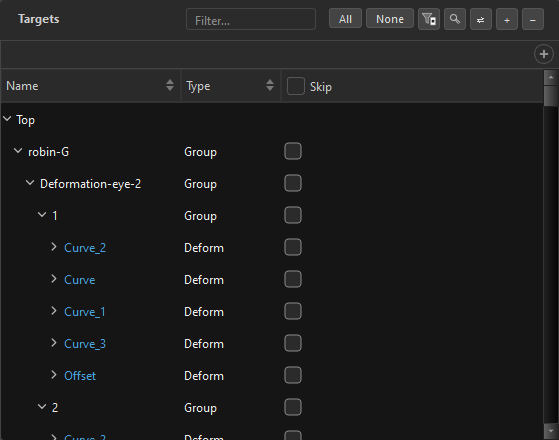
Deform targets nest three deep: group › chain › curve — the nesting in the shot at the top of this page, where robin-G › Deformation-eye-2 › 1 › Curve_2 is a target, its chain and one of its curves. Container rows all read Group; leaves read Deform, Peg or Drawing, because a group's members are not all the same kind. Every row shows the node's own name exactly as Harmony has it, so a row in the list and a node in the Node View always read the same.
Each level can carry its own Side and Weight, resolved in one direction:
curve → group → target
An inherited value is drawn dimmed; setting one explicitly makes it solid. A row always shows the resolved value, so it never lies about what drives it.
A group whose curves disagree shows Mixed — information, never a choice you can pick.
Skip
With Octo Skip Nodes installed and the integration on, each row gets a Skip checkbox. Checking it tags that node with OSN's skip symbol at Compose, so B-navigation walks past it. The node stays perfectly reachable in the Node View.
- The header checkbox is a binary toggle driven from the rows, so a partial state never traps you.
- A group header cascades to every leaf under it and shows a tri-state box.
- Ctrl+Alt+A checks every visible row, Ctrl+Shift+Alt+A unchecks them.
- A bulk change is one undo step.
The right-click menu
| Item | Notes |
|---|---|
Remove selected |
Counts the actual leaf rows affected. |
Skip selected / Don't skip selected |
When the Skip column exists. |
Copy Side (L) / Copy Sides (7 curves) |
The scope is in the label, never in whether the row is folded. |
Paste Sides / Paste Sides Mirrored |
Disabled with the reason as its tooltip when the structures do not match. |
Performance on big lists
A head with 500+ targets is normal, and the list is built for it: row widgets are created only for what is on screen, a bulk repopulate freezes behind a snapshot of the old list rather than blanking, and a bulk edit takes one undo snapshot rather than one per row.
Related
- Pages, Pairs & Sides — the Side column
- Pose Layers
- Look-At — which uses the same list for pegs and deforms
- Visibility Groups — which uses it for hide-nodes