Controls
A control is a turnaround holder, and the carrying parent for everything below it.
It does two jobs:
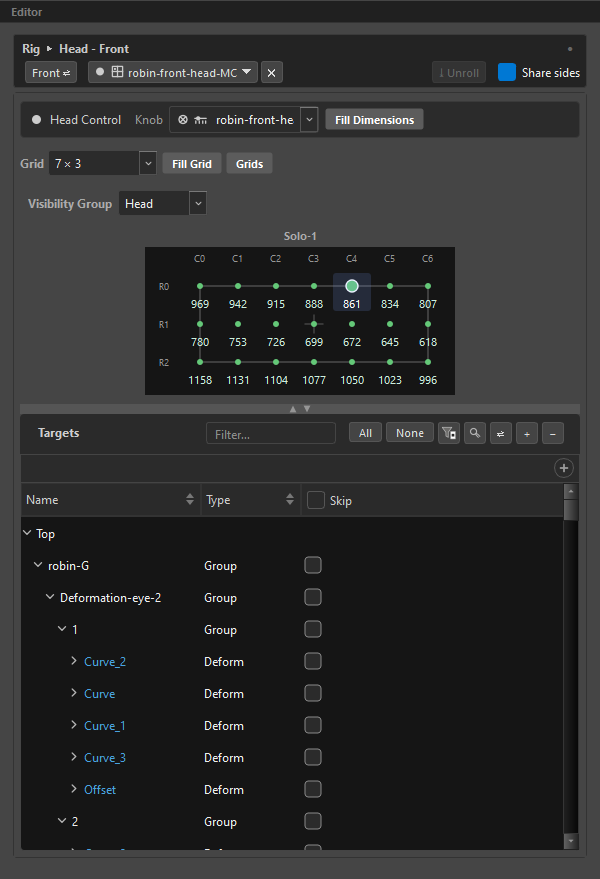
- It holds a Front face and, optionally, a Back face — each one a pose layer — and gives the finished rig a
Front ↔ Backtoggle to flip between them. - It is the thing other pose layers key across. Your eyebrows do not have nine poses; they have nine poses at every one of the head's fifteen.
Every rig starts with one control named Head. You can rename it, delete it, or add as many more as the character needs — a torso, a second head, a prop.
Faces
A face is a pose layer doing a specific job: being the control's own grid. A face is always a single-page solo grid — it has no L/R pair of its own, because the whole control is the thing being posed.
To set one, select the control and click Set Front. The menu offers:
| Entry | What it does |
|---|---|
| Any eligible pose layer | Adopts that layer as the face. |
New Layer |
Creates a fresh layer already assigned to this face, matching the sibling face's type and size (5 × 3 by default). |
Import MC… |
Imports a Master Controller from the Node View as the face, bringing its grid, frames and targets. |
The menu only lists layers you may legally use:
- Knobs never appear — a knob is an axis, not a pose set.
- A layer already owned by another control is excluded. See Exclusivity below.
- Once one face is set, only layers of the matching shape are offered — grid pairs with grid, slider with slider.
Once a face is set, the button shows that layer's name and type icon. ✕ detaches it: the layer is spat back out as an independent layer with its targets and frames intact. That is not a delete — deleting is done in the Outliner.
Front alone is a complete rig
You do not need a Back face. Add one later if the character needs a turnaround; the toggle only appears in the composed rig when a control actually has both.
Switching faces
Front ⇄ / Back ⇄ flips which face you are editing. The choice is remembered per control — flipping Head to Back does not flip Torso.
If the target face is empty, the toggle still goes there, so you can reach an empty Back in order to fill it.
Faces are absorbed
Faces do not appear as their own rows in the Outliner — they are drawn into the control. That is why a control with two faces still shows a single row, marked with the ⇄ turnaround trail.
One type per control
A control's two faces are always the same type — both grids, or both sliders. You never have to enforce this yourself: set a face, or change its type later, and ORC converts the other face to match on the spot. A grid back becomes a slider the moment you make the front a slider, seeded with the front's tick count.
Only the type is locked. Dimensions stay free — a 5 × 3 front with a 7 × 3 back is a normal control. The one place dimensions do matter is Share Sides, right below: the row counts must match for the side columns to align.
Share Sides
When a control has both faces, Share sides (on a slider face: Share Extremes) makes the Back grid stop authoring its own extreme columns — they come from the Front instead.
The idea: a character's pure left and pure right profiles look the same whether you approached them from the front or the back. Authoring them twice is work you do not need to do, and work that can drift apart.
| Face type | What is shared |
|---|---|
| Grid | The first and last column. |
| Vertical slider | The first and last row — the two extremes. |
In the Back grid, those snaps render in teal and are read-only. They stay clickable so you can jump to the frame the Front authored there.
The toggle explains itself when it cannot be used:
| State | Why |
|---|---|
| Hidden | No face set — the type is unknown and there is nothing to share. |
| Visible but disabled | Only one face. "Set both a Front and a Back to share the sides (L/R columns)." |
| Disabled with a row warning | Both faces set, but different row counts. "Front and Back have different row counts — the side columns can't align to share. Match their rows to enable Share Sides." |
Sharing reaches beyond the frames: a driver or look-at key placed on a Back face's lateral column collapses onto the Front's key, because the value is shared and the address has to be too.
Exclusivity
A pose layer belongs to exactly one control.
A layer that is a face or a child of control A cannot become a knob or a face of control B. This is per-control encapsulation, and it is what keeps a two-head rig from bleeding into itself.
If you try, ORC refuses by name:
"Eyebrows" belongs to "Head" — a layer only keys across knobs of its OWN control. Make the knob global to share it.
To share an axis between controls, make it global. A global layer belongs to no control and anything may key across it.
Adding and duplicating
Add a control from the Outliner's + → Control. It is created empty, named New Control, with the inline rename already open.
Right-click a control for Duplicate Control, which has two modes:
| Mode | Copies | Use it for |
|---|---|---|
Structure only Ctrl+D |
The faces — grid shape, widget look, knob, back toggle — with an empty target list | The upper/lower-lid workflow: clone the shape, then point the copy at different nodes. |
Full (layers & targets) |
Everything: faces, targets, owned pose layers, knobs, drivers and look-ats, with fresh keys and remapped references | A second character part that behaves identically. |
Neither copies poses — the copy is re-authored, not duplicated.
Deleting
Deleting a control is allowed, including the root Head.
- Its free layers are sent to level 0 (they become global).
- Its faces are deleted with it.
Delete Hierarchytakes the control plus everything it owns: faces, knobs, look-ats and free layers.
A freed face becomes a visible row again — nothing disappears silently.
What a control gives the composed rig
| In ORC | In the Camera View |
|---|---|
| The face grid | A grid or slider widget the animator drags |
| Both faces set | A Front ↔ Back checkbox |
| Share Sides on | The back's extremes silently reuse the front's poses |
| A knob on the face | A second widget that moves the whole turnaround |
The Front ↔ Back checkbox is per control: the root and every extra control with both faces each compose their own — a two-head rig flips each head independently, and a control that never got a Back simply has no checkbox to show. It is the same rule every built-in toggle follows: it appears only when the rig gives it something to act on — see Interpolation for the one toggle that is global.
Related
- Pose Layers — what keys across a control
- Knobs — giving a control an extra axis
- Dimensions & Key Domains — how a control's grid adds to the sum
- Unroll — baking a control's poses back to the timeline