The Navigator
The left column navigates. It never authors.
That one rule explains the whole design. When you are authoring a pose layer, that layer's own grid lives in the centre Editor, where you can type frame numbers into it. The Navigator shows the grids above it — the control it hangs from, the knob it keys across — as dots you move a cursor through, so you can say "…and now, at this head pose."
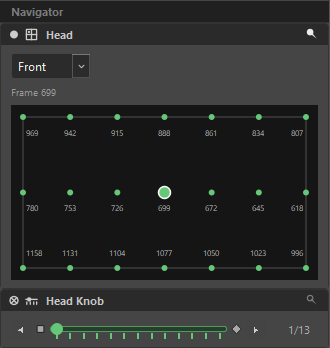 A control's grid on top, its knob's slider below.
Navigator versus Editor
| Navigator (left) | Editor (centre) | |
|---|---|---|
| Shows | position dots, green keyed marks, frame badges | editable frame numbers, rulers, fill handles |
| You do | move the cursor, jump the timeline | edit frames, set and remove keys, fill, copy grids |
| Purpose | choose which pose of the parent you are authoring at | author this layer |
The same snap of the rig can appear in both places at once: as a dot in the Navigator because your layer keys across it, and as an editable snap in the Editor because that layer is what you are authoring. A control never navigates itself — when the selected layer is a control's face, that control's card disappears.
Moving around
| Gesture | Effect |
|---|---|
| Left-click a snap | Move there. The timeline stays put — so you can keep stamping keys without losing your place. |
| Middle-click a snap | Move there and jump Harmony to that snap's keyframe. |
| Shift + arrows | Step the cursor. Timeline stays put. |
| Ctrl + arrows | Step the cursor and jump the timeline. |
| Alt+← / Alt+→ | Step the knob one position. |
A 1-D dimension is drawn as a slider instead of a grid:
◀/▶step one state; middle-clicking either also jumps the timeline.- The two end anchors jump to the first and last state; middle-click to also jump the timeline. They are not decoration — see below.
- Middle-clicking the groove jumps to that state's frame.
- The handle snaps to ticks — it never rests between states.
- The counter on the right is 1-based:
3/13. - A dimension with only one position hides its stepper entirely rather than showing a dead
1/1.
Which end is which
A slider does not always run left to right. In the Widget Editor you can lay it out horizontally or vertically, and reverse its direction — so "the top" and "the first state" are not the same thing on every rig.
That is what the two anchors are for:
| Glyph | Marks |
|---|---|
| The start of the travel — state 1 | |
| The end — the last state |
Whichever way the slider is drawn, the square is where the count begins and the diamond is where it ends. Without them a rotated or reversed slider gives you no way to tell.
The same pair appears on a 1-D grid in the Editor, and on a driver's slider knob, so the language is the same everywhere.
Reading the dots
| Mark | Meaning |
|---|---|
| An ordinary snap. | |
| The active node has its own key here — a pose frame, a driver value, a constraint state or a look-at key. One colour for all of them. | |
| The cursor, on an unkeyed snap. | |
| The cursor, on a keyed one. | |
| Modified — this snap's frame has changed since the rig was brought in. | |
| The cursor, on a modified snap — the yellow replaces its white border rather than adding a second ring. | |
| Removed — empty, but the reference has a frame here that was deleted. | |
| The cursor, on a removed snap — empty (blue) with the yellow border. | |
| Number under a dot | The frame that snap points at. |
On a slider the same signal has to take another shape: a tick is a line with no outside to ring, so a modified state turns its head — the end nearest the groove — yellow while the body keeps saying whether it is keyed. Park the handle on one and the handle takes a yellow ring, since sitting there it covers its own tick.
A navigator's yellow rolls up
On the authoring grid, yellow means this snap's frame diverged — exact, so you know which one to fix. On a navigator it means something addressed through here diverged: a position here names a whole slice of the rig, so the mark answers for the slice. A control snap lights when any layer or knob under it holds a diverged snap; a knob position lights when the page it creates does. Follow the yellow inward and the authoring grid points at the exact snap.
And it is not only pose frames: a driver value or a look-at key changed since re-open marks its own navigators the same way — the snap on the driver's layer grid, the tick head on its slider, its knob card, and the control snap above them all. See Visual Indicators.
When a key is recorded, the cursor flashes green for a moment — on this grid and on every layer grid on screen at once.
On a dense grid the individual badges disappear and the active snap's frame is drawn on a small dark pill instead, with a crosshair across the grid so you can still see where you are. On a slider whose ticks are closer than about 3 pixels the ticks stop being painted — navigate with the arrows and the anchors instead.
The caption line
Every navigator card carries one grey caption above the widget, in the form Head Knob · Frame 699. It is the always-readable answer to "what frame is this?" even when the dots are too dense to badge.
A card with nothing to say — an empty slot, or a knob that is a pure dimension with no frames of its own — shows no caption at all.
Scope: why a card appears or doesn't
The Navigator re-decides its whole contents on every selection change. It shows a card only when there is genuinely a dimension above you to navigate. When there is not, it says so:
| You selected | Navigator shows | Why |
|---|---|---|
| An ordinary pose layer | Its control's grid, plus its knob | The normal case. |
| A global pose layer | Its knob only | "Level 0 — nothing above it. Composes head-less." |
| A control's own knob | Nothing | "This knob authors its own dimensions. The control's grid adds no axis here — the control already keys through this knob." |
| A control with a face set | That face's knob | A control does not navigate itself. |
| A control with no face | Nothing | "This node has no dimension to navigate — only pinned references show here." |
| A visibility group | Nothing | "Organization node — it doesn't author." |
| A constraint | Nothing | "Global only — on/off per snap, no grid of its own." |
| A global look-at or driver | Nothing | "Level 0 — its value is keyed head-less." |
| A control-scoped look-at | The owning control's grid | |
| A driver scoped to a control | The control's face, plus its knob when used | |
| Nothing at all | Pinned cards only | "Only pinned references — no scope to navigate." |
The column grows itself to fit its content when it can, but it will never shrink a pane you dragged bigger.
Pinned navigators
Sometimes you need to see a grid you are not currently authoring — the head's pose while you work on a mouth layer three levels down. That is what pins are for.
To pin: click the pin button in a navigator card's header, or the pin glyph at the right edge of any control / pose layer / knob row in the Outliner. Filled white means pinned.
The rules:
- The head control is pinned by default.
- Pinning also pins the parent chain. Pinning a layer pins its knob and its control. It never pins children.
- Unpinning removes only that node — its ancestors stay pinned until you unpin them too.
- A pinned node that the active scope is already showing does not get a second card.
- There are four pinned slots. Pins beyond the fourth are simply not drawn.
A pinned card is marked view-only: a dashed dimmer border, a muted title. It shows frame numbers but no green keyed dots — green means "the active node's own key", and a reference card has no business claiming that.
You can still navigate on a pinned card: left-click moves the reference cursor, middle-click jumps the timeline. Only authoring — the right-click key menu — is blocked.
A pinned control that has both faces gets a small Front / Back combo. That is a view-only flip of what you are looking at; it never changes which face the control is authoring.
The right-click menu
Right-clicking a snap in the Navigator grid gives you the keying and bulk-clear commands for the whole rig at that position:
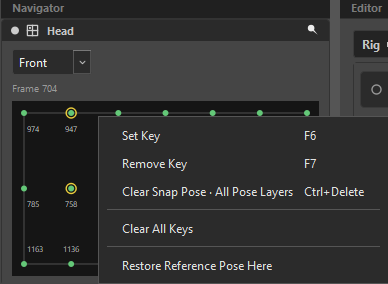
| Item | Effect |
|---|---|
Set Key F6 |
|
Remove Key F7 |
|
Clear Snap Pose · All Pose Layers |
Removes the keyed snap at this position across every pose layer, each at its current snap. |
Clear Current Knob Keys · All Pose Layers |
Only when a knob is active. Removes every key on the current knob across all layers. |
Clear All Keys |
Every pose layer, every snap, every knob. |
Restore Reference Pose Here |
Puts the imported / re-opened reference back over everything the selected position addresses for the selected layer — exactly what its yellow mark covers. Greyed with the reason when there is no reference or nothing diverged. See Visual Indicators. |
A slider navigator — what a 1-D control, a knob, or a look-at's bound pose layer gets — carries the same menu. Which shape the navigator takes is a property of the dimension, not a difference in what you can do to it.
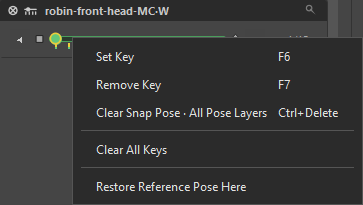
Pinned (view-only) cards have no context menu: they navigate, they never author.