The Outliner Tree
The Outliner is the rig. Everything else in the window — the Navigator, the Editor, the Compose button's opinion of whether you are ready — reads from what you select here.
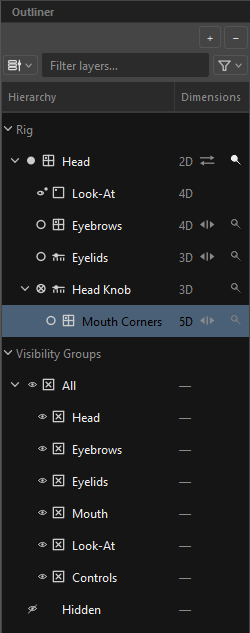 The default Dimensions display mode.
Anatomy
The column is three things stacked: a toolbar (+ and −), a filter bar (display mode, search, funnel), and the tree itself.
There is no "Outliner" title — the toolbar names the column.
The + menu
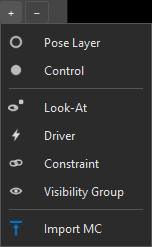
Clicking + (or right-clicking empty space in the tree) opens the same menu everywhere in ORC. It has three groups:
| Item | What it creates |
|---|---|
| Pose Layer | An empty pose layer. New layers are born global — drag it onto a control to nest it. |
| Control | An empty control, named New Control, with the inline rename already open. |
| Look-At | A look-at node. See Look-At. |
| Driver | A driver, routed straight into the Driver editor — no dialog. |
| Constraint | A constraint, routed straight into the Constraint editor. |
| Visibility Group | A group at root level, a sibling of Hidden. (To nest one inside another, right-click the parent group and use New Visibility Group Inside.) |
| Import MC | Imports the Master Controller currently selected in Harmony's Node View as a new layer — its grid, its authored frames and its targets come with it. See Re-editing a Composed MC. |
− removes the selection. It is disabled while the rig has no layers.
The two sections
The top level of the tree is always exactly two headers:
Rig — level 0 of the rig graph. It holds the controls and, side by side with them, everything that belongs to no control: global pose layers, global knobs, global drivers, constraints and global look-ats. Dropping a layer on the Rig header means "free of any control".
Visibility Groups — the group hierarchy. Collapsed by default.
Neither header can be selected, renamed or deleted, but both accept drops.
Reading a row
Every row carries a pair of glyphs: a role glyph on the left and a type glyph on the right. The role says what kind of thing this is; the type says what shape of widget it is.
Role glyphs
| Glyph | Role |
|---|---|
| Control | |
| Pose layer | |
| Knob — a layer being used as a dimension source | |
| A control's own knob | |
| Look-At | |
| Driver | |
| Constraint | |
| Visibility Group | |
| The permanent Hidden group |
Type glyphs
| Glyph | Type | Meaning |
|---|---|---|
| Combo Slider | 1-D, discrete — it stops on each tick | |
| Continuous Slider | drivers only | |
| Combo Grid | 2-D, discrete | |
| Continuous Grid | driver pads and look-at | |
| Checkbox | drivers |
The icons are self-documenting
The interior lines are the snap stops. A continuous type is exactly its discrete twin minus the lines. Once you see that, you can read any row's shape without a legend.
The second column
In the default Dimensions mode the right-hand column shows how many axes the row keys across. The chip is grey, with one exception:
| Colour | Meaning |
|---|---|
| Grey | Normal. |
| Red | A compose blocker — two extra knobs writing the same node and channel, which cannot sum. Compose refuses until you resolve it. |
Red is not confined to the chip: the whole row is repainted — the name, the chip and both glyphs — because it is the one state that stops you shipping.
A pose layer shows the honest sum of its axes — its own grid, plus its carrying parent, plus each extra knob.
After the chip, a row may carry one trailing glyph:
| Glyph | Meaning |
|---|---|
| A control has both a Front and a Back face — a turnaround. | |
| A pose layer has L/R mirror pairs. Two or more add a small raised count. | |
| Σ | The layer or driver composes additively — its keys are deltas from a neutral, not absolutes. |
The mirror glyph and Σ share one slot, and Σ always wins.
Hover any chip: the tooltip spells out the whole sum in words, e.g. "5D — total axes this layer keys across (own grid + carrying parent + each extra knob)."
Pins
Controls, pose layers and knobs each have a navigator of their own, so they carry a small push-pin at the far right of the second column.
| Glyph | State |
|---|---|
| Pinned — filled head | |
| Not pinned — hollow head, dimmer |
Clicking it toggles the pin and does nothing else — it will not select the row or start a drag. See Navigator.
How the tree nests
You do not choose a row's parent directly; ORC derives it from what the node actually keys across. In the Dimensions mode:
- A global free layer sits at level 0 under
Rig— unless it keys across a knob, in which case it nests under that knob. - A control's Front / Back faces are absorbed into the control and are not shown as rows at all.
- A layer that keys across a knob in the same control nests under that knob.
- Otherwise, a layer assigned to a control nests under it.
- A knob mirrors its consumer's placement — into the control if its consumer is there.
- A look-at nests under its bound pose layer if it has one, else under
Rigif global, else as the first child of its control. - A driver nests under whatever it keys across: a control, a pose layer, or
Rigfor a global one. - Constraints are global-only and are always direct children of
Rig.
If a node's owner has been deleted, the node does not vanish — it falls back to Rig, where you can see it and re-home it. Nothing is ever hidden because its parent went away.
Selecting
The tree is a multi-selection tree, but only one row at a time is active (the one with the brighter slate highlight). The Editor follows the active row, not the selection — so selecting eight layers to delete them never blanks the editor.
- Ctrl/Shift-clicking a row that is already inside a multi-selection just makes it the active one, without collapsing the set.
- Clicking empty space clears everything, and the Editor shows its empty state.
- Clicking a row that is already active still re-routes the Editor.
Expanding
Chevrons are ▾ when expanded and ▸ when collapsed, and only appear when the row has a visible child — an absorbed face does not earn one.
| Gesture | Effect |
|---|---|
| Click the chevron | Expand / collapse that row. |
| Shift + click on the chevron strip | Expand or collapse the whole branch below. |
| Double-click the name | Inline rename. |
| Double-click off the name (e.g. in the second column) | Toggle expansion. |
Renaming
F2 or a double-click on the name. Controls, pose layers, knobs, look-ats, drivers, constraints and custom visibility groups can be renamed. Section headers, absorbed faces and the permanent Hidden group cannot.
Committing a blank name keeps the old one.
Drag and drop
Dragging is how you restructure the rig. A ghost of the row follows the cursor, and a live tooltip always names exactly what the drop will do before you release.
Two drop affordances:
- Into a row — a translucent blue fill under a dashed outline across the whole row.
- Between rows — a 2 px blue rule with a small nub. The nub's horizontal position is the depth being offered, so drag left to drop shallower.
| You drag | Onto | Result |
|---|---|---|
| Pose layer / knob | a Control (centre) | Free layer inside it. Hold Alt for Front, Alt+Ctrl for Back. |
| Pose layer / knob | another layer (centre) | That layer becomes a knob this one keys across. |
| Pose layer / knob | between rows under Rig |
Level 0 — a head-less global layer. |
| Driver | a Control | Keys across that control's grid. |
| Driver | a pose layer | Keys across that layer. |
| Look-At | a Control | Anchored on that control's key domain. |
| Look-At | a pose layer | Keyed across that layer. |
| Visibility Group | another group | Nests inside it. |
| Visibility Group | the Visibility Groups header |
Moves to top level. |
Some drops are refused, always with a reason in the tooltip:
- "A driver can't sit under an empty knob — drop it on a control or a pose layer."
- "Checkbox drivers are Global only — pick another widget type to own this driver with a control."
- "A group can't nest inside itself."
Assigning a face is destructive
Assigning Front or Back replaces whatever held that slot, which is why it needs the Alt chord rather than a plain drop. ORC never picks "the first empty slot" for you — the slot is always explicit.
Nothing can be dragged in the Flat display mode; it has no hierarchy to express.
Keyboard
| Key | Effect |
|---|---|
| F2 | Rename the active node. |
| Delete | Delete the whole selection. |
| Ctrl+D | Duplicate the duplicable rows in the selection. |
| Ctrl+C | Copy the selection to an in-tree clipboard. |
| Ctrl+V | Paste — copy once, paste many. |
Drivers, constraints, look-ats, pose layers and controls can be duplicated; visibility groups and sections cannot.
Deleting
Deleting is a two-click confirmation only when there is data to lose. When there is, the feedback bar goes yellow:
Delete node "Eyebrows"? Keyed poses, drivers and look-at frames on them are removed. Click − again within 5s to confirm (Ctrl+Z to undo).
On a rig with nothing keyed, deletion is immediate — a confirmation that always fires is a speed bump, not a safety net.
A multi-delete confirms once and undoes as a single Ctrl+Z.
What deleting does:
- Deleting a control sends its free layers to level 0 and deletes its faces. A freed face becomes a visible row again.
- The root
Headcontrol is deletable — it simply empties. Delete Hierarchyremoves the node plus what it owns. A control owns its faces, knobs, look-ats and free layers. A visibility group owns only its child groups — its members are reparented, never deleted.- Not deletable: the two section headers and the permanent Hidden group.
Hidden is the only fixed group
Every other group — All included — can be renamed or deleted. Hidden stays, because every rig needs somewhere to put things that must not be reachable.
Right-click menus
Every node kind has its own menu. If you right-click a row that is not in the current multi-selection, you get that row's own menu rather than the multi-selection menu.
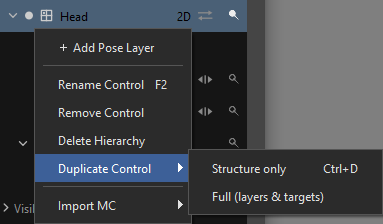
| Item | Notes |
|---|---|
+ Add Pose Layer |
Creates the layer inside this control (unlike the toolbar +, which makes a global one). |
⤓ Unroll Poses… |
Only when an MC is loaded. See Unroll. |
Rename Control F2 |
|
Remove Control |
|
Delete Hierarchy |
Only when the control owns children. |
Duplicate Control ▸ Structure only Ctrl+D |
Clones the faces — grid, widget look, knob, back toggle — with an empty target list. This is the upper/lower-lid workflow: clone the shape, re-point the targets. |
Duplicate Control ▸ Full (layers & targets) |
Clones everything: faces, targets, owned pose layers, knobs, drivers and look-ats, with fresh keys and remapped references. |
Import MC ▸ Front Face / Back Face |
Import a Harmony MC straight into this control's face slot — you name the face explicitly, never "whichever face happens to be active". Same path as the Control page's [Set ▾] menu. |
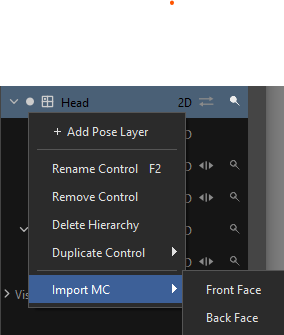
That is the whole menu — a control's right-click creates inside the control only. Root-level creation (a global layer, another control, a driver…) lives on the toolbar + and on empty space, where root level is what you mean.
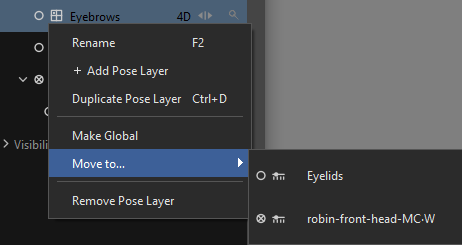
| Item | Notes |
|---|---|
Rename F2 |
|
+ Add Pose Layer |
|
Duplicate Pose Layer Ctrl+D |
Clones structure and targets. Poses are not copied. |
Make Global |
The layer composes at every head pose. Keeps the current snap's pose. Refused (with the reason) when the result would pass the global 4D budget — see below. |
Move to… ▸ |
The menu twin of dragging the node — one list, two kinds of target, each wearing the outliner's dual glyph. A control re-parents the layer (it composes per that control's pose). A pose layer or knob becomes this layer's axis — the layer keys across it, replacing its current knob (same single-axis rule as the Knob picker). |
Remove Pose Layer |
Only when more than one layer exists. |
The Move to… list only offers what would actually work: no cycles, no other control's knobs, and nothing past the dimension budget — a layer tops out at 6D with a control in its chain and at 4D fully global. A global 2D layer that already pages a 2D knob is a 4D chain, so it never appears as a target for another global layer. See Dimensions & Key Domains.
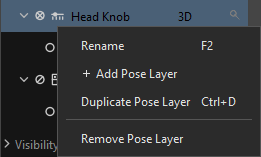
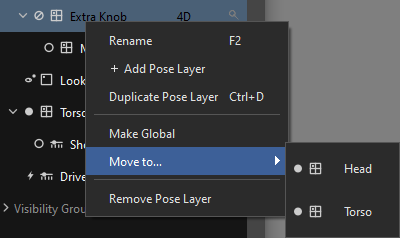
An extra knob is a real layer with a parent, so it takes Make Global and Move to… ▸ like any pose layer. Its consumers are not carried: going global means "this dimension becomes shareable" — the layers paging it stay where they are and keep paging it. Moving a knob into a control while global layers still page it is refused, naming them — a global layer only keys across global knobs, and nothing re-homes in silence.
A control's :W knob and a face stay without the moves — their placement is the control itself.
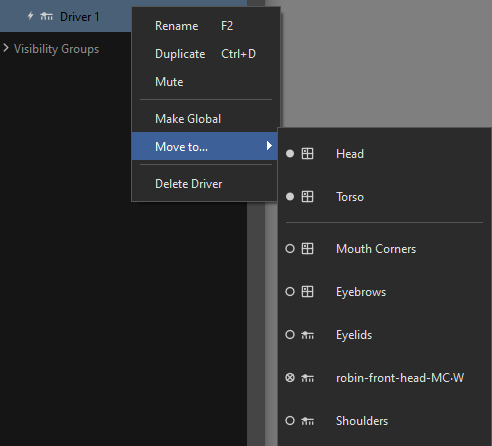
| Item | Notes |
|---|---|
Rename F2 |
|
Duplicate Ctrl+D |
|
Mute / Unmute |
"Skip this driver at compose without deleting it (dimmed in the outliner)." |
Make Global |
One value everywhere — no per-snap keying. The driver's keys are cleared (there is no pose axis left to hold them). |
Move to… ▸ |
Everything a driver can key across, dual-glyphed: controls (Control scope — keys per that control's pose) and pose layers / knobs (keys across that layer's grid; an owned layer keys per its control's pose too, a global layer keys alone). Same funnel as dragging the driver node. |
Delete Driver |
A checkbox driver is always global — it keys across nothing — so Make Global and Move to… sit greyed with that reason, and the Behaviour dialog mirrors it: Checkbox is unpickable while the driver is scoped.
| Item | Notes |
|---|---|
Rename F2 |
|
Duplicate Ctrl+D |
|
Mute / Unmute |
|
Delete Constraint |
| Item | Notes |
|---|---|
Rename F2 |
|
Make Global |
When it is not already global. |
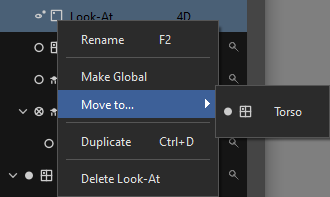
Move to… ▸ |
One entry per other control, dual-glyphed (the type half tells a 1D from a 2D control at a glance). |
Duplicate Ctrl+D |
|
Delete Look-At |
Every look-at takes every gesture — the head's first look-at is no more special than the forty-ninth.
| Item | Notes |
|---|---|
Rename F2 |
Disabled on Hidden. |
New Visibility Group Inside |
The only way to create a nested group, at any depth. |
Delete Visibility Group |
Disabled on Hidden. |
Delete Hierarchy |
Only when the group actually parents sub-groups. |
On Hidden, the disabled items explain themselves: "Hidden is the permanent sink — every rig needs somewhere to hide nodes. Any other group can be renamed or deleted."
| Item |
|---|
Duplicate {n} node(s) Ctrl+D |
Delete {n} nodes |