Look-At
A look-at is a gaze system: one joystick that aims, and up to two independent modes that answer to it.
| Mode | Moves | Typically |
|---|---|---|
| Tracked Pegs | Peg transforms | Irises, pupils — anything that slides across an eye |
| Deform Follow | Deform points | Eyelids, skin, anything that should drag along with the gaze |
The two are fully independent. Use one, the other, or both. They have separate target lists, separate key domains and separate value fields.
Add one with + → Look-At.
Ownership
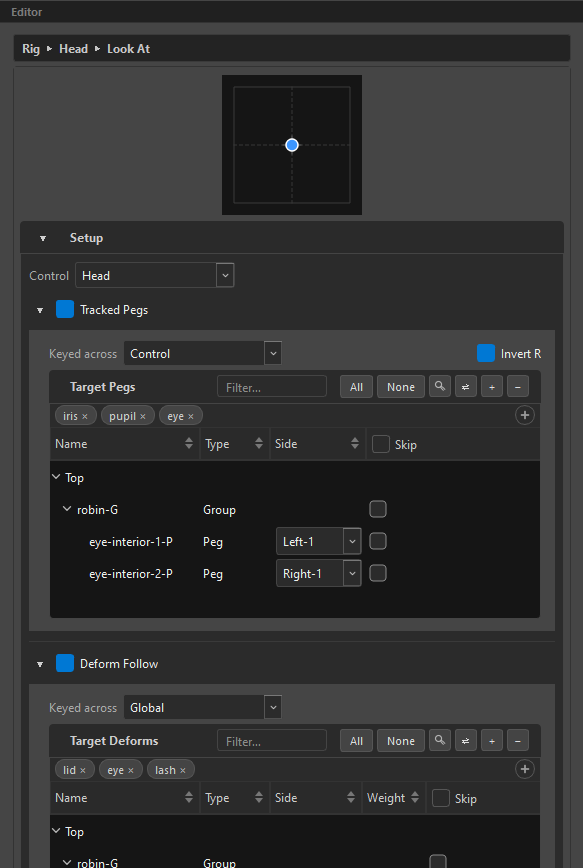
The Control picker at the top decides which control this look-at belongs to — or Globals for none.
The control this look-at belongs to. Its grid is what the Control scopes key across. Globals = no control dimension.
Ownership is explicit: it is set here or by dragging the node in the Outliner, and nothing else moves it. On a two-head rig this is what keeps one head's look-at from claiming the other's eye deforms.
A look-at exists on its own
No face, no control, no pose layer — a rig carrying nothing but a global look-at is a valid rig: it composes, drives its pegs and deforms directly, and its joystick anchors at the grid origin.
What does need a control face is the per-snap Control scopes, since they key across the control's grid. Without one they grey out with the way forward in the tooltip, and a choice parked on them is remembered and restored the moment the face exists — the same domain rule every picker follows.
Tracked Pegs
Turn it on with its checkbox. This is the classic iris look.
Target Pegs
Add pegs from the Node View. Each row's Side assigns it to a pair and a side — Left-1, Right-2, Solo-3. Several rows can share a side; that is multi-peg on one side.
Both-N is deliberately not offered here: a peg drives one node.
The magnet keywords bar pulls in every peg whose name matches — iris, pupil, eye.
If a pair goes solo, the dropped side's pegs become Orphan:
Orphan — this peg's side was dropped when the pair went solo. Pick a Side to reassign it, or remove it (−). Re-pairing restores it.
Keyed across
The look-at's own key domain: Global, Control, Pose Layer, or Control + Pose Layer. Layer scopes add a Pose Layer picker and a Use pose layer knob checkbox.
Invert R
On by default. It compensates the mirrored right-eye peg, so both irises track the target together. Turn it off and the right eye mirrors the left's direction instead.
Deform Follow
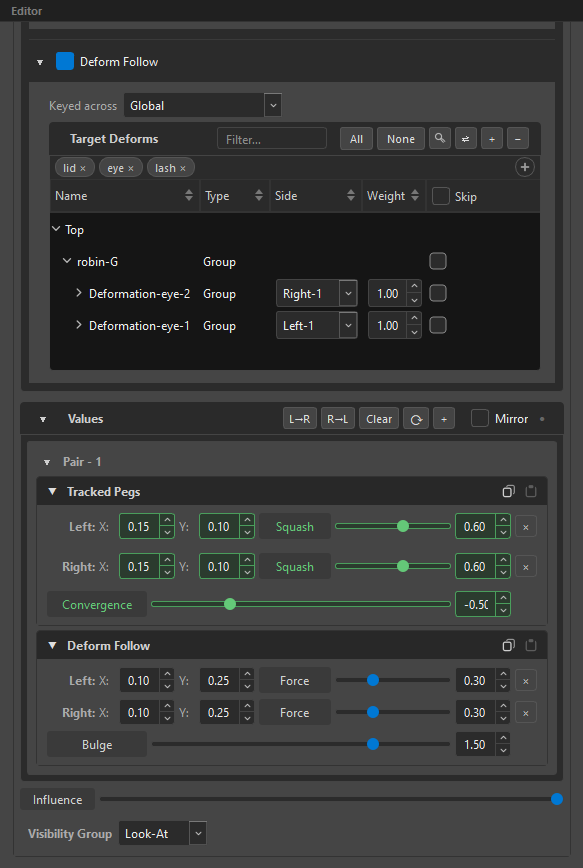
Off by default. Drags deform points with the gaze, additively over whatever pose is already there — a general damped-track follow.
Target Deforms
Hierarchical: deformation group › chain › curve. Each level carries a Side and a Weight.
The Side here is a grid selector, not a peg identity, so it always offers concrete Left-N / Right-N / Both-N — never Solo.
Weight (0–1) is how much this point drags with the gaze, cascading curve → group → target, default 1.0. An inherited weight is drawn dimmed; setting one makes it solid.
Keyed across
The same four domains, with its own picker — Deform Follow can be keyed differently from Tracked Pegs. That is the point of them being independent.
Values
One card per pair, each holding whichever modes are on.
Tracked Pegs, per side
| Field | Range | Default | What it does |
|---|---|---|---|
X / Y |
0.01 – 10.0 | 0.2 | How far the peg travels on each axis |
Squash |
0 – 1 | 0 | The peg squashes and stretches as it travels off-centre — an iris curving over an eyeball |
Convergence, per pair
Range −1 to 1 — the only signed field in the whole system.
+ (positive): physical near-target focus — the far side travels more. − (negative): cartoon lead/follow — the side the drag is on leads. 0: both sides travel equally.
Deform Follow, per side
| Field | Range | Default | What it does |
|---|---|---|---|
X / Y |
0.01 – 10.0 | 0.2 | The follow range on each axis |
Force |
0 – 1 | 1.0 | How strongly it follows |
Bulge, per pair
Range 0 – 2.0, default 1.0 (neutral). How much the followed deform curves as it travels — it bends the deform handles, so a lid wraps around an eyeball instead of sliding flat.
Bulge is chain-aware: it drives a point's handle and its neighbour's together, so a shared joint never splits into a bump. Only curve modules bulge — offsets and bones have no handles to bend.
Influence
One slider under the pairs: an overall 0–1 weight on the whole look-at, keyable, and the same idea as a driver's influence.
Keying look-at fields
Every value field is keyable, in whichever domain its mode is set to.
| Gesture | Effect |
|---|---|
| Hover a field, F6 | Key that one field |
| Hover the joystick, F6 | Key every look-at field at once |
| Right-click a field | Set Key, Remove Key, Set as Default, Reset to Default, Driver ▸ |
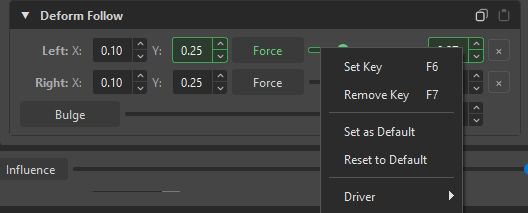
At Global scope, keying is disabled with the reason: "Look-At Scope is Global, so this field holds one value everywhere. Set Scope to Control to key it per control pose."
The label of a keyed field turns green; an interpolated one turns red; a driven one turns pink — on both the slider and its number box.
The joystick menu
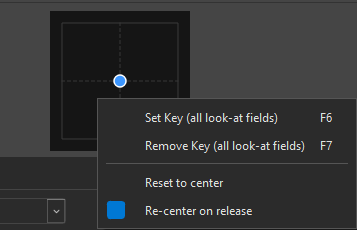
| Item | Effect |
|---|---|
Set Key (all look-at fields) F6 |
|
Remove Key (all look-at fields) F7 |
|
Reset to center |
|
Re-center on release |
The joystick springs back when you let go |
Changed values go yellow after a re-open
Like drivers, a look-at key whose value changed since the rig was re-opened marks its snap yellow on the layer navigator, the knob card and the head grid — and re-keying the same value marks nothing. See Visual Indicators.
The Values toolbar
Two clusters, separated by a gap: actions on the left, modes on the right.
| Control | What it does |
|---|---|
L→R / R→L |
Mirror peg keys between the halves of the control grid. The centre column is skipped. Available at Control scope only. |
Clear |
Clear every per-snap peg key, falling back to the global default. |
⟳ |
Recapture the peg baselines — re-read the peg transforms at every snap. Use it after editing the MC, or if the preview has drifted. |
+ |
Add a pair. |
Mirror |
On by default: editing any left value auto-copies to the right and back. Turn it off for an asymmetric rig. |
● |
Auto-key. Disabled while both modes are Global. |
When an action is unavailable the reason is appended to its tooltip, e.g. "Available at Control scope only — at Global scope there are no per-snap peg keys."
Pairs
A pair is one set of eyes. Most rigs need one; a spider needs four.
The × on a side row removes it and the pair goes solo; the + on a solo adds the second side back. Going solo also hides the Convergence row — there is nothing to converge.
Right-click a pair for Copy Keys ▸ and Paste TP / DF Keys Here, so a tuned pair can seed the others. The clipboard is per family, so you can copy just Tracked Pegs or just Deform Follow.
Removing the last pair is refused: "Cannot remove the last pair — at least one is required." Removing a pair that has pegs configured arms a five-second confirm.
Pair links
When Deform Follow is bound to a pose layer, each pair shows a small link badge naming the page it is bound to. If that page no longer exists, the badge turns amber and reads unlinked:
This pair has no matching page in the bound pose layer. Right-click to create a page, make it solo, or unlink.
Exclusivity
Two ownership rules keep look-ats from fighting over the same rig:
- A peg belongs to exactly one look-at.
- A (pose layer, side) belongs to exactly one look-at for Deform Follow. The same layer can feed two look-ats only if they take different sides.
The UI greys out a side that is already taken and names its owner.
Exposing fields to animators
Any look-at field can get its own slider on the canvas — strength, convergence, ranges, force, bulge. They are created in the Hidden group by default; drag one into a visible group in the Widget Editor to expose it.
A field can also be handed to a driver, via Driver ▸ in its right-click menu. The driver's authored range then spans the field's whole range, so a 0–100 slider maps correctly onto a 0–1 strength.
Related
- Drivers — taking over a look-at field
- Dimensions & Key Domains
- Targets — the same list, used for pegs and deforms
- Widget Editor — placing the joystick and its sliders