Keyboard Shortcuts
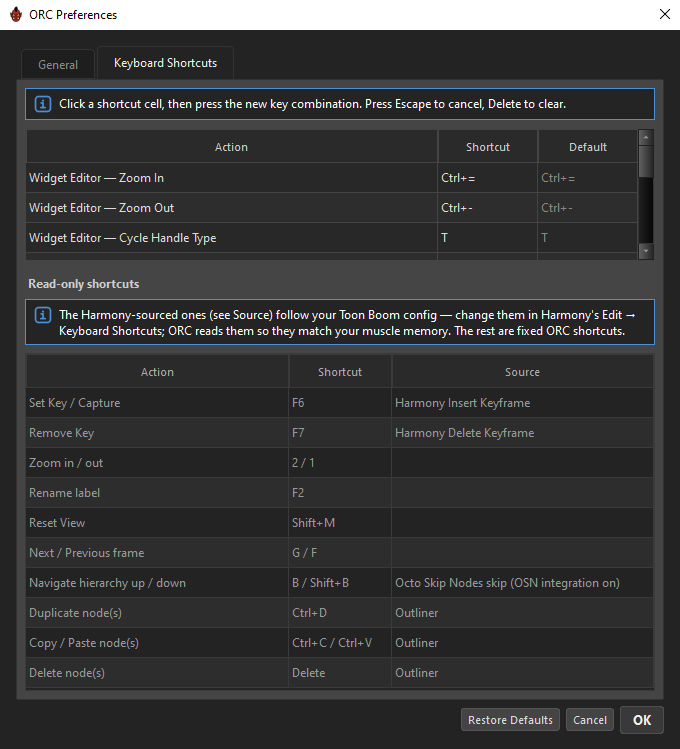
ORC's shortcuts come from three places, and it matters which:
- Configurable — ORC's own, rebindable in Preferences → Keyboard Shortcuts.
- Fixed — universal editing keys that are not rebindable.
- Harmony-sourced — read out of your Toon Boom configuration so they match the muscle memory you already have. Change them in Harmony's Edit → Keyboard Shortcuts; ORC follows.
Keying
| Action | Key | Source |
|---|---|---|
| Set Key / Capture | F6 | Harmony Insert Keyframe |
| Remove Key | F7 | Harmony Delete Keyframe |
F6 and F7 follow your mouse, not your focus
These two dispatch on what the cursor is hovering, so they work without clicking first — and they keep working while you are typing in a field.
| Hovering | F6 keys |
|---|---|
| The Navigator's grid | the MC snap |
| A pose layer's grid | that layer's snap |
| A driver's knob | that driver's value |
| A constraint's toggle | that constraint's state |
| A look-at field | that one field |
| The look-at joystick | every look-at field at once |
| Nothing relevant | nothing at all — the key is swallowed |
Navigating
| Action | Key | Notes |
|---|---|---|
| Step the selected layer's grid | ← → ↑ ↓ | |
| Step the control's grid | Shift + arrows | Timeline stays put. |
| Step the control's grid and jump the timeline | Ctrl + arrows | |
| Step the knob one position | Alt+← / Alt+→ | Alt+↑/↓ are deliberately unused. |
| Next / previous frame in Harmony | . / , | Harmony-sourced; forwarded straight to Harmony. |
| Navigate node hierarchy up / down | B / Shift+B | Harmony-sourced. Uses Octo Skip Nodes' binding when that integration is on. |
| Zoom in / out | 2 / 1 | Toon Boom's own. |
| Reset view | Shift+M | Harmony-sourced. |
Editing
| Action | Key |
|---|---|
| Undo | Ctrl+Z |
| Redo | Ctrl+Shift+Z or Ctrl+Y |
| Rename | F2 |
| Remove the selected target from the active layer | Delete |
Inside a text field, Ctrl+Z undoes your typing rather than the rig.
ORC only listens while it is the active window
Every shortcut is gated on the ORC window being focused — otherwise a Ctrl+Z in Harmony's Camera View could quietly unwind ORC's undo stack.
Outliner
| Action | Key |
|---|---|
| Delete the whole selection | Delete |
| Duplicate | Ctrl+D |
| Copy | Ctrl+C |
| Paste (copy once, paste many) | Ctrl+V |
| Expand / collapse the whole branch | Shift + click the chevron |
Lists (targets, hide-nodes, tracked pegs)
These are active while the cursor is over that list — no clicking to focus first, and no ambiguity when several lists share the window.
| Action | Key |
|---|---|
| Select all rows | Ctrl+A |
| Clear selection | Ctrl+Shift+A |
| Check every Skip box | Ctrl+Alt+A |
| Uncheck every Skip box | Ctrl+Shift+Alt+A |
Grids
| Action | Gesture |
|---|---|
| Type an exact frame | Double-click a snap |
| Nudge a snap's frame ±1 | Shift + mouse wheel over it |
| Select a range | Shift + click |
| Select a whole row / column | Click its ruler (Shift to extend) |
| Autofill | Drag a fill grip — Alt counts down, Shift continues the whole-grid count, Ctrl holds the value |
| Fill to the edge | Double-click a fill grip |
Widget Editor
| Action | Key |
|---|---|
| Zoom in / out | Ctrl+= / Ctrl+- (rebindable) |
| Cycle the selected grid's handle shape | T (rebindable) |
| Pan | Hold Space and drag |
| Select all / clear selection | Ctrl+A / Ctrl+Shift+A |
| Nudge | Arrows |
| Fine nudge | Shift + arrows |
| Axis-lock a drag | Hold Shift |
| Scale symmetrically about the pivot | Hold Alt |
| Lock aspect while scaling | Hold Shift |
| Undo / redo | Ctrl+Z / Ctrl+Shift+Z |
MC Name field
| Key | Effect |
|---|---|
| Enter (first press, or clicking away) | Appends -MC if it is not already there |
| Enter (again) | Clicks Compose |
Bulk clears — unbound by default
These five exist as actions but ship with no key assigned, because they destroy a lot of work in one press. Assign them in Preferences if you use them often; until you do, they are still available from the grid right-click menus.
| Action | Reaches |
|---|---|
Clear Snap Pose · All Pose Layers — Ctrl+Delete (the one exception: this is bound) |
The current snap, across every layer |
Clear Pose Layer Keys at Current MC Snap |
One layer, current control snap |
Clear Pose Layer Keys (Current Knob) |
One layer, current knob |
Clear All Pose Layer Keys |
One layer, everywhere |
Clear Current Knob (All Pose Layers) |
Every layer, current knob |
Clear All Keys |
Everything |
Once you bind one, the combo appears next to its item in the right-click menus.
Rebinding
In Preferences → Keyboard Shortcuts:
- Double-click the
Shortcutsnap. It turns gold and reads Press new shortcut… - Press the combination. Lone modifiers are ignored while it waits. Numpad keys stay distinct from the top-row digits.
- Esc cancels. Delete resets that row to its default.
- Nothing is written until you press OK.
Colour tells you the state: normal grey is the default binding, blue is one you changed, red is a conflict.
A conflict is flagged, not blocked
ORC highlights two actions sharing a combo but still lets you save it. If you do, which one fires is genuinely ambiguous — so treat red as something to fix.
Restore Defaults at the bottom of the dialog resets every binding and every preference.
Only bindings you actually changed are written to disk, and the Harmony-sourced ones are never written at all.