Licensing & Activation
Octo Rig Composer runs on a 30-day trial, then on a perpetual licence bound to a machine.
The trial
The clock starts the first time ORC checks its licence — not at download, not at install. While it runs you get:
- the full tool, with nothing disabled,
— Trial (Nd)in the window title,- a banner in the bottom bar: "Trial: N day(s) remaining — Activate your license to unlock permanently", with Activate and Dismiss.
The banner's colour walks a severity ramp as the trial runs down — yellow, then orange, then red — so the deadline becomes legible before it is urgent. Dismiss hides it for the session.
Activating and deactivating do not reset the trial
The trial start date survives both, on purpose.
When the trial expires, ORC opens the activation dialog on launch. Closing it without activating closes the tool.
Activating
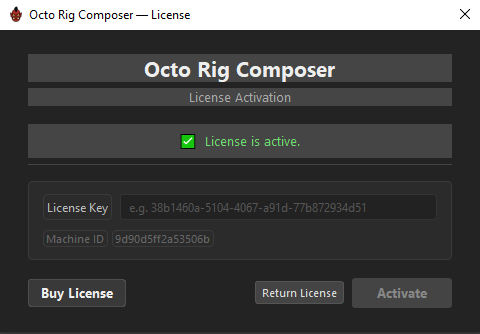
Open the dialog from the trial banner's Activate, from Preferences → License → Add Key, or from the launch prompt.
- Paste your licence key — the format is a UUID, e.g.
38b1460a-5104-4067-a91d-77b872934d51. - Press Enter or click Activate.
- On success the status turns green and the dialog closes itself after a moment.
| Button | When it appears | What it does |
|---|---|---|
| Buy License | Always | Opens the store page. |
| Continue Trial | During the trial | Closes the dialog and keeps going. |
| Activate | Always | Activates the key you typed. |
| Return License | Once activated | Frees the licence so another machine can use it. |
| Cancel | Once expired | Closes the dialog — and, at launch, the tool. |
Moving to another machine
Two ways, and the first is much better:
Before you wipe the machine — click Return License (in the activation dialog) or Deactivate (in Preferences). Both confirm first, then free the seat. The machine drops back to trial state and the key becomes free to activate elsewhere.
After you have lost the machine — activating on a new one will fail with "Activation limit reached — deactivate another machine first." That message carries a link, Lost that machine? Recover your license →, which opens the recovery page with your key already filled in.
Tip
Deactivation clears the local licence even when the server cannot be reached, so a machine going offline permanently is never a trap on this side.
Offline behaviour
An activated licence re-checks with the server about once a week.
- Server unreachable — ORC soft-fails to success and reports "Offline mode (server unreachable)." You keep working; it will re-check next time it can.
- Server reachable and rejects (a revoked key, an unknown instance) — the status becomes expired and ORC asks for a new activation.
- Machine fingerprint changed — treated as expired. Re-activate, or return and re-activate.
Machine ID
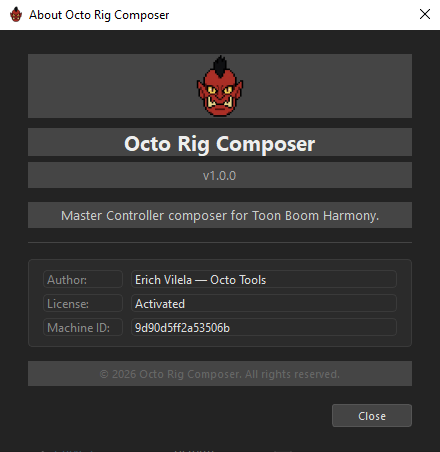
A 16-character fingerprint derived from your machine's hardware address, hostname and username. You can read it in three places — Preferences → License, the About dialog, and the activation dialog — and it is selectable everywhere so you can copy it.
Include it when you contact support; it is also sent automatically when you use ? → Report a bug….
Suite keys
If you bought the Octo Tools bundle rather than ORC alone, the same key activates every tool in the suite. One activation also covers every host application a product ships in.
Messages you might see
| Message | Meaning |
|---|---|
License activated successfully! |
Done. |
Activation limit reached — deactivate another machine first. |
Every seat is in use. Return one, or use the recovery link. |
License key does not belong to this product. |
Right shape, wrong product. |
License is expired. / License is disabled. |
The server refused the key. |
Machine fingerprint mismatch. |
The stored licence was activated on different hardware. |
Could not reach the license server. |
Network or firewall. If you were already activated, you keep working offline. |
Offline mode (server unreachable). |
Normal, benign — a re-check could not run. |
Local license cleared (server could not be reached). |
Deactivation completed locally; the seat may still need freeing server-side. |
Where the licence lives
| OS | Path |
|---|---|
| Windows | %APPDATA%\Octo\OctoRigComposer\license.json |
| macOS | ~/Library/Application Support/Octo/OctoRigComposer/license.json |
| Linux | $XDG_CONFIG_HOME/octo/octorigcomposer/license.json |
Deleting that file returns the machine to its trial state locally, but does not free the seat on the server — use Return License or Deactivate for that.
Licensing keeps its own log at orc_python_debug.log in your system temp folder, with every line prefixed [licensing].